Service level agreements example: 8 managed WiFi clauses
Service level agreements example templates for managed WiFi: uptime, response times, service credits and maintenance clauses, plus partner negotiation tips.
Captive portal login, explained for partners: authentication flow, security and privacy limits, failure fixes, and when to drop the splash page.
A guest joins the free WiFi in your hotel lobby, opens a browser and gets nowhere. Instead of the page they wanted, they see your venue's branded sign-in screen. For the guest, it's a brief interruption. For the network team, it's a controlled point where access is held until a policy condition is met.
That distinction matters. A captive portal can manage anonymous guest access and record that a device completed a step. It can't, by itself, prove who is using that device or provide the kind of identity-based access that staff, students or residents often need.
A captive portal login is the web gate a network places in front of internet access. A visitor joins the venue's WiFi, but the network holds back general internet traffic until the visitor reaches a splash page and completes its prompt.
Think of a hotel front desk answering a call but not connecting it to an outside line until the caller accepts the terms or offers some form of identification. The network is doing something similar: it lets the device join WiFi, then pauses ordinary browsing until the required action is complete.
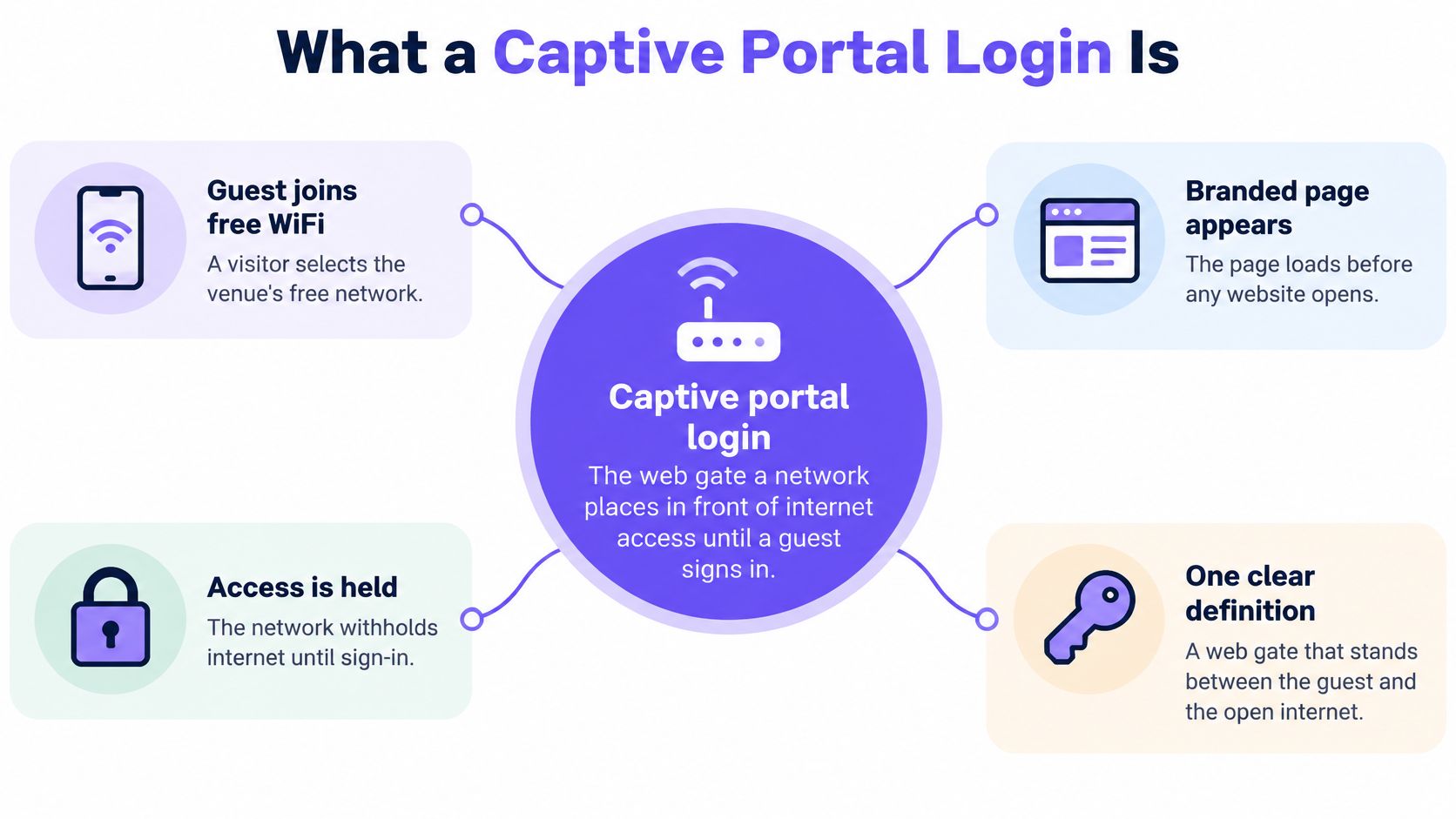
The basic path is short. A device joins an open SSID or one protected by a shared key, receives a network address, then requests a web page. The network redirects that request to a splash page hosted on a controller, a cloud service or another permitted host.
After the visitor completes the prompt, the network applies an allow rule to the device or session. That rule releases traffic subject to a time limit, a data allowance or another access policy. The portal is therefore best understood as a timed policy checkpoint, not as a WiFi password.
The splash page is only the visible part of the system. The access point provides the radio connection, while a gateway or controller manages the restriction and release of traffic. A captive portal isn't the access point, WPA3-Enterprise or a private local network by itself. Those are separate parts of a network design, each with a different job.
Partners still encounter portals in cafés, retail, hotels, hospitals, campuses, student housing and council WiFi. They're useful when a venue wants visitors to accept terms, enter a voucher or make a small, optional contribution of information before going online.
The practical field check is simple: join the guest SSID and confirm that the splash page appears before an ordinary website loads. That verifies the user-facing checkpoint, but it doesn't establish that the network knows the visitor's identity or has encrypted the wireless connection.
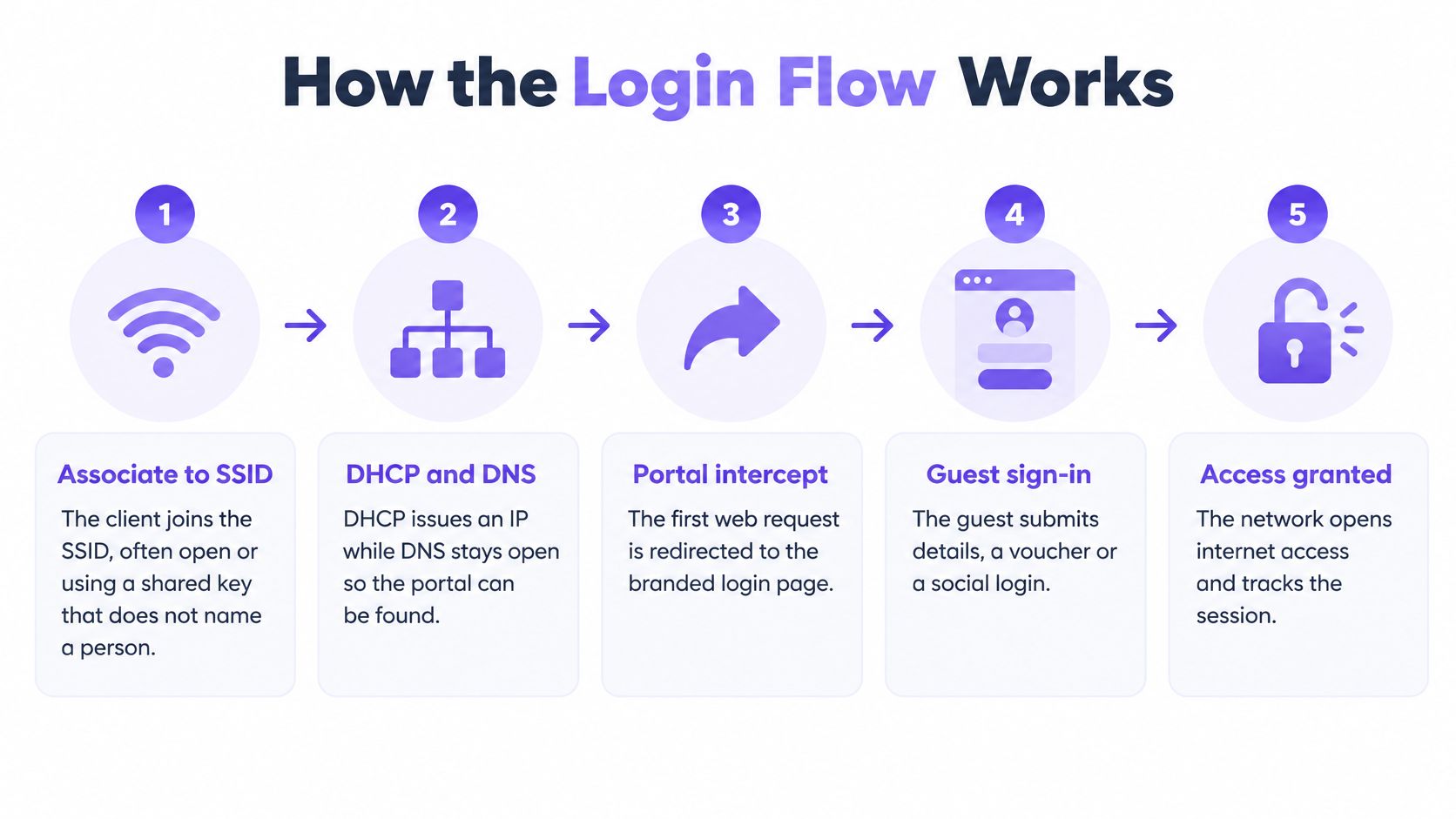
A captive portal login is a chain of network events. When one part can't find or update another, the guest may get stuck before seeing the page or after submitting it.
The client associates to the SSID. A phone or laptop joins the wireless network, often an open SSID or one using a shared key. Association gives the device a connection, but a shared key doesn't identify the individual holding it.
DHCP and DNS prepare the path. DHCP gives the device an IP address, while DNS needs to remain available enough for the portal's hostname to resolve. Without those basics, the device can't reach the page it needs to sign in.
The device makes its first web request. It may be an ordinary HTTP request or an operating system connectivity check. The device is testing whether it can reach the internet as expected.
The network redirects the request. A gateway sends the device to a splash page hosted on a controller, a cloud portal or another host permitted through the walled garden. The walled garden is the limited set of destinations the device can reach before authorisation.
The visitor completes the prompt. The page may ask the visitor to accept terms, enter a voucher, submit an email address or phone number, or use a social sign-in. The prompt determines what the venue gets from the interaction, and what the visitor must do to get online.
The portal asks the gateway to allow the session. The network needs a usable identifier, such as the current MAC address, IP address or session reference, so it can apply the access rule. The session store, gateway and portal must agree that the visitor has completed the required step.
Later traffic proceeds until the session ends. The redirect stops for the authorised session until logout, expiry, a roam that loses session state or a new hardware address makes the device look unfamiliar. The access rule needs a clear end condition, or a temporary guest session can outlive its intended purpose.
The redirect engine, walled-garden list, splash host, session store and the API or RADIUS update to the gateway must work as one system. A page can look correct while a missing update prevents the gateway from releasing traffic. Likewise, a successful sign-in can appear to fail if the portal records one device identifier but the gateway checks another.
Three behaviours often surprise users and support teams. A strict HTTPS site won't display a forged portal page without a browser warning, because its encrypted connection is meant to reach the named site. Apple, Android, Windows and ChromeOS use different connectivity checks, so one device may open the sign-in window while another waits. And MAC randomisation can make a returning device appear to have a new address, leaving yesterday's allow rule irrelevant.
A successful splash submission is only meaningful if the gateway receives and applies the matching session update.
| Method | What the user does | Identity quality | Main limit |
|---|---|---|---|
| Click-through terms | Accept terms on the splash | Anonymous device only | No person to revoke or contact |
| Voucher or access code | Enter a shared or single-use code | Weak shared secret | Codes leak and need manual issue |
| Email or SMS | Submit an address or one-time code | Contactable but spoofable | SMS cost, delay and bad addresses |
| Social login | Use a social account button | Profile fields from a third party | Platform policy and button failure |
| RADIUS or 802.1X | Sign in against a directory | Named user and role | Heavier setup; portal often unnecessary |
| App or Passpoint profile | Opt in once, then auto-connect | Repeat visitor or resident | First enrolment still needs a path |
The choice is not just about what the sign-in screen looks like. Each method sets an operational burden: staff time to issue and explain access, message charges where SMS is involved, clear consent wording for data collection, and a decision about how a returning person is recognised on another device.
Click-through is the quickest route when the venue needs an anonymous guest to accept terms. It proves that someone accepted the prompt from a device, not who they are. That makes it a poor tool for contacting a visitor or revoking one person's access.
Vouchers suit an event or a paid session when staff can issue codes through a controlled process. A shared code can be passed on, so the venue must be ready to replace or manage it if it spreads. If front-desk staff hand out codes, include the time they spend doing that in the service design.
Email and SMS prompts can provide a route for a receipt or verification, but neither automatically proves a real-world identity. Addresses may be mistyped or invented; messages can be delayed, and sending SMS adds cost. Keep the requested information tied to a clear purpose and make the visitor's next step obvious.
Social login depends on an external platform, its available button and its rules for sharing profile fields. That may reduce typing for some visitors, but it also creates a dependency the venue doesn't control. App profiles and Passpoint-style access are more suited to repeat visits: enrolment still needs an initial path, but later connections needn't depend on another splash-page form.
Use click-through for anonymous terms-only access. If the client needs to revoke one leaver, distinguish one resident from another, or assign access to a named role, don't base that requirement on a shared portal secret. Directory-backed authentication gives the organisation a person to manage.
Configure the guest network in the same order a device uses it. That makes it easier to test each dependency and isolate whether a failure starts at association, page discovery or session authorisation.
| Setting | What to set | Why it matters |
|---|---|---|
| SSID | Open or shared key, not a named user | The portal still has to accept or identify the guest |
| DNS and portal host | Resolvable before authorisation | Otherwise the splash never loads |
| Walled garden | OS detection URLs, splash host and needed mail hosts | Probes and pre-login email must pass |
| Redirect | Normal redirect to a valid certificate | Forged HTTPS causes a browser warning |
| Session rule | Live MAC or IP plus a timer or data cap | Traffic is released only for that visit |
| Consent copy | Terms separate from marketing | A click is not a marketing basis |
Create a guest SSID. Use an open network or a shared key that doesn't name an individual, and keep staff off that SSID. A common password is a guest access mechanism, not staff identity management.
Make address assignment and portal name resolution work before login. DHCP must serve the device, and DNS must allow it to find the portal host. If the device can't resolve the name, the page can't load.
Set the walled garden deliberately. Permit the splash host and the relevant Apple, Android, Windows and ChromeOS connectivity-check URLs. Add mail hosts only if a visitor must receive a code before access is granted. Keep the pre-login allowlist limited to what the flow needs.
Redirect to a proper HTTPS host. Use a normal redirect to a host with a valid certificate. Don't try to present a made-up page inside a visitor's encrypted connection to another website.
Apply a session rule the gateway can read. After a successful prompt, authorise the live MAC address or IP address, start the time limit or data cap, and store the session where the gateway can retrieve it through an API or RADIUS.
Choose one prompt and make consent clear. Attach a method that matches the visitor's purpose. Keep acceptance of network terms separate from an optional marketing choice so the visitor can tell what each action means.
Test more than the happy path. Join from a laptop and a phone using private addresses, complete the prompt, then force a return visit and confirm that the session rule expires as intended. A page that works on one device is not proof that all clients can find and complete the flow.
A portal manages an access checkpoint. It doesn't change the security properties of the wireless connection around it. If the guest network uses an open or pre-shared SSID, the splash-page click does not encrypt the radio link by itself, nor does it prevent someone from broadcasting a look-alike network name.
That distinction affects what a venue can reasonably claim. A visitor who has accepted terms may still be using a session identified only by a device address. MAC addresses can be observed or changed, and modern devices may use private addresses that change how repeat visits are recognised. A shared venue password also can't be revoked for one person without changing the secret for everyone who uses it.
Separate the terms needed for access from optional marketing consent. UK GDPR requires the organisation to identify a lawful basis, collect only necessary information and set a retention period. PECR also applies to electronic marketing, including follow-up by email or SMS. A visitor's email address for a receipt is not, by itself, permission to build a marketing profile.
Tell visitors what the venue collects, why it needs it, who is responsible for the data and how long it will be kept. If an MSP runs the splash for a client, the parties should be clear about which organisation acts as controller and what the MSP does with the information. Logs that include device details, IP addresses and timestamps need an identified purpose and access controls, not indefinite retention by default.
The page itself is part of the service. Use plain language, make controls accessible, and offer a route that doesn't demand an account a visitor may not have. Payment card data doesn't belong on a WiFi sign-in form. Where children or patients may use the network, keep the prompt to the smallest action needed to provide access.
For the wireless layer, network segmentation and suitable encryption have jobs that the portal can't perform. Partners should explain those boundaries plainly to clients. Purple's access point security guidance is a useful starting point for discussing how access-point choices fit into the wider design.
A portal records that an access event occurred. It does not, by itself, provide zero-trust staff access.
The common ticket reads: “I'm connected to WiFi, but there's no login page.” Start by finding out whether the device joined the intended SSID and received working network service. Then check whether its connectivity probe or first web request can reach the portal path.
| Symptom | Usual cause | First check |
|---|---|---|
| Splash never appears | Probe or DNS never hits the portal | Allow OS detection URLs and the portal host |
| Login loops after submit | Allow rule not applied on the gateway | Confirm API or RADIUS session for the live MAC |
| Laptop works, phone does not | Captive assistant or private MAC | Compare OS probes and randomised addresses |
| Verification email never arrives | Filtering or mail host blocked pre-login | Check mail delivery and walled-garden access |
| Splash is slow to load | Heavy images or third-party tags | Slim the page and retest on mobile data-off |
| Return visit counts as new | MAC randomisation | Stop keying identity only on the hardware address |
| Certificate warning | Attempt to intercept HTTPS | Use a normal redirect to a valid certificate |
If the splash never appears, first confirm that DNS resolves the portal host and that the walled garden permits the device's operating-system checks. A VPN, private DNS setting or cached result can also change what the device sends. On site, a technician can test a second device and open a plain HTTP page to see whether a redirect happens.
If the page appears but loops after submission, check whether the allow rule reached the gateway. Compare the session record with the live MAC address the network sees now, then inspect the API or RADIUS update. That's usually a controller or integration check, not a reason to keep asking the visitor to submit the form.
When a laptop works and a phone doesn't, compare the devices' captive-network assistants and their private MAC settings. If email verification never arrives, check delivery and confirm that the required mail hosts can be reached before authorisation. Don't assume the visitor typed the wrong address until you've tested the path the message depends on.
A slow splash often points to page weight or third-party tags. Remove large images and unnecessary scripts, then retest with mobile data turned off so the phone can't load missing assets over its cellular connection. If a return visit looks like a new person, stop treating yesterday's hardware address as a durable identity.
A certificate warning is a stop sign. Don't try to defeat TLS interception; use a normal redirect to a portal host with a valid certificate. On-site checks such as joining the SSID, testing a second device and confirming DNS are quick. Changes to controller rules, walled-garden policy or identity integrations usually need an authorised configuration change and a planned retest.
Every extra field and slow-loading asset gives a guest another reason to abandon the login and use mobile data instead. A portal can be technically correct and still work poorly for the venue if visitors can't complete the prompt quickly.
Newcastle's public WiFi has an 88% authentication rate, compared with a 71% industry average. The comparison shows that completion isn't fixed by offering free WiFi alone. The design of the access journey matters.
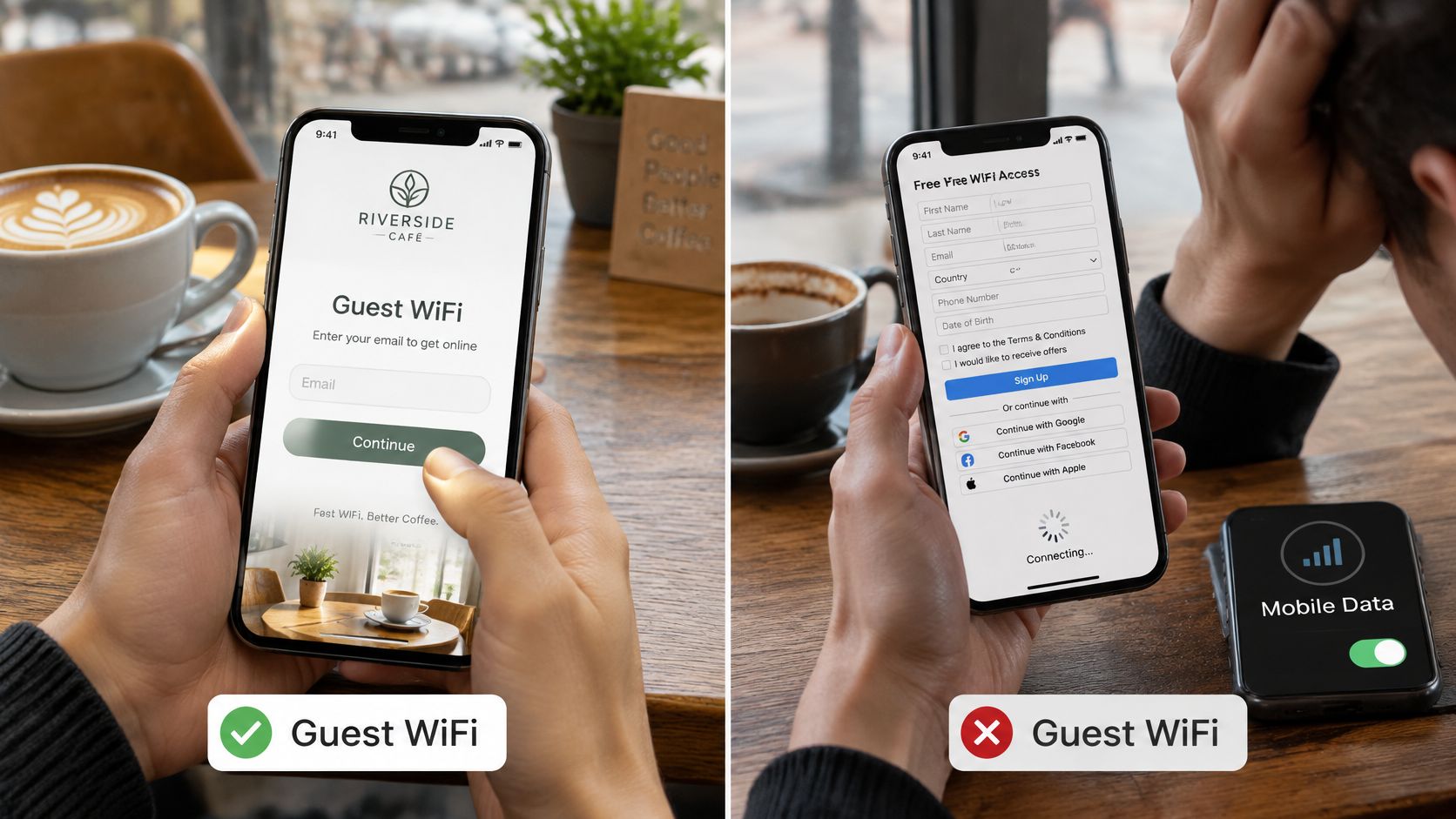
Newcastle City Council's Purple WiFi has recorded 2.3m logins since launch. At that kind of scale, even a small amount of avoidable friction can mean many missed connections. For a partner, abandoned logins mean less usable first-party insight, weaker measurement of return visits and more time spent handling complaints about passwords or forms.
A brief, honest prompt can still serve a venue's purpose. It might ask one optional question, while letting the guest get online without a drawn-out account-creation process. A mandatory account or a slow page can have the opposite effect: visitors learn to avoid the SSID.
The review should measure outcomes that tell the client whether the journey is working: completion rate, time to get online, repeat visits and helpdesk tickets about access. Splash-page views alone don't tell the venue whether visitors reached the internet or found the process acceptable. Purple Guest WiFi supports branded guest access and analytics, which can help partners shape that review around the venue's actual goals.
Keep a captive portal for anonymous guest terms, a short event voucher or one optional question on a transient visit. Leave it when the network needs to name a person across devices, revoke a leaver, separate residents or stop relying on one shared password.
Harrods' Purple guest WiFi has been in place since 2016 and asks WiFi users a custom question about interest in Harrods Rewards, routing interested users to a pre-filled signup form. That's a focused guest interaction, not a substitute for staff access control.
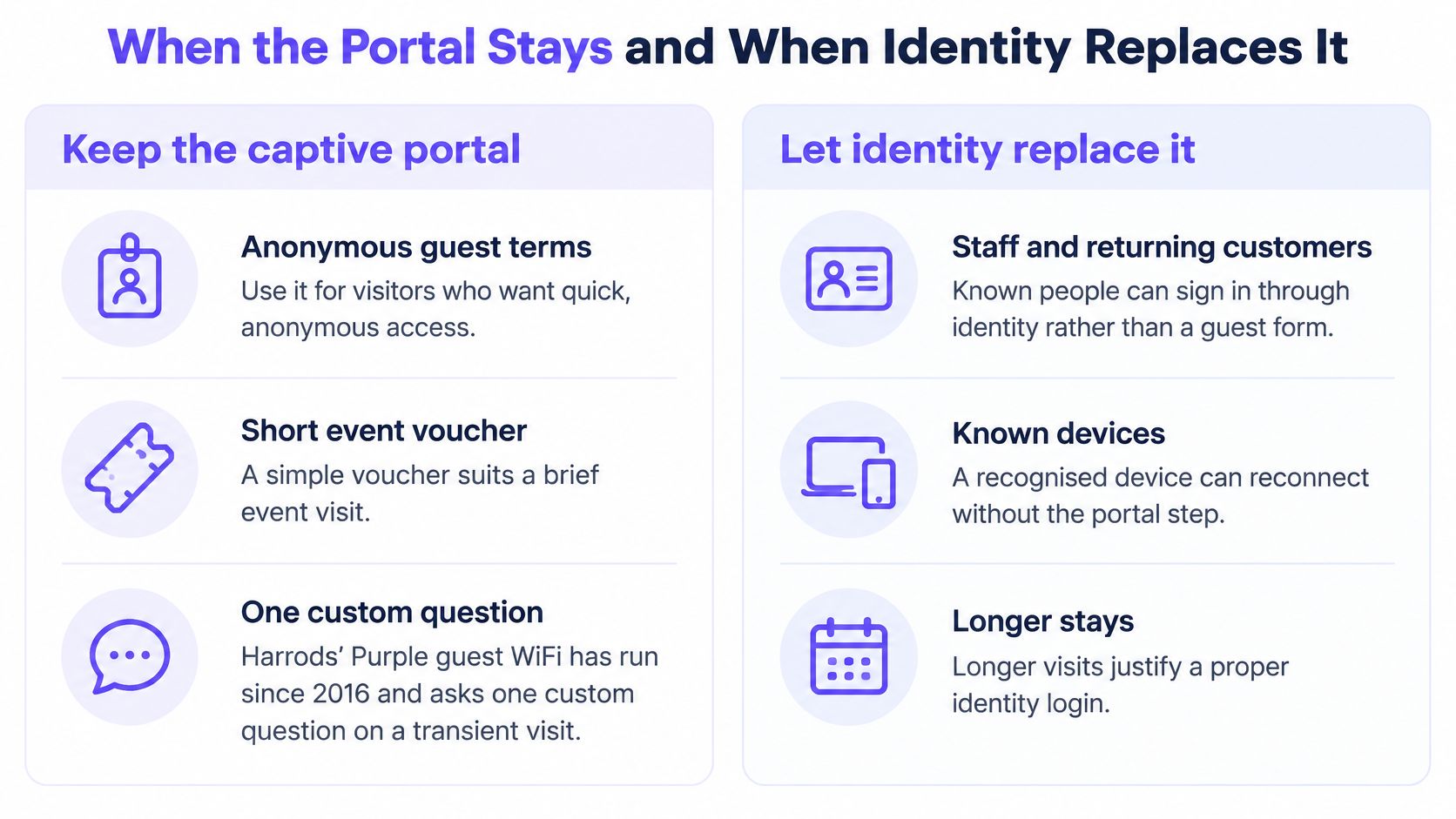
Staff, students, hotel residents and people in multi-tenant buildings often need an access model that can recognise them without repeatedly asking them to complete a guest form. A portal tied only to yesterday's MAC address can't reliably provide that continuity. Nor can a shared password be revoked for one leaver without affecting everyone who uses it.
Pick one client SSID that still relies on a shared password or a mandatory splash for people who should be known. For staff, Purple provides WPA3-Enterprise with automatic device provisioning and revocation tied to the customer's identity provider through the Purple app, without shared passwords. Staff WiFi works with Entra ID, Google and Okta. For the wider question of how managed devices can authenticate, Purple's guide to Windows Hello for Business provides a related identity-management example.
Returning guests can opt in once through the Purple app and reconnect automatically on later visits; residents can use a private in-app pass. Keep the old guest SSID only where anonymous terms still fit the job. For a first pilot, choose the client's first SSID that should already know its users, then define who must be named, who may remain anonymous and which portal prompt can go.
We help partners replace shared-password and repetitive-portal access with identity-based staff WiFi, guest onboarding and private multi-tenant connectivity on existing infrastructure. Start with the SSID that should know its users, then visit Purple to explore a white-label pilot for that venue.
Join 80,000+ venues already running on Purple. No targets, no minimums, just bigger deals.