
Difference between IPv4 and IPv6: What MSPs need to know
Difference between IPv4 and IPv6 explained for UK MSPs and WiFi partners: addressing, NAT, security, routing and a safe migration path.
Eduroam not working? Learn the likely causes, device fixes, certificate checks and when to escalate to your home institution, with UK-specific steps.
You're outside a lecture theatre, your laptop shows a strong WiFi signal, and eduroam keeps asking for your password. Your phone might connect while your laptop refuses, or everything might have stopped working after an institutional password change.
Don't start by accepting every security prompt or repeatedly retyping your credentials. The useful question is where the failure sits: on your device, at the campus you're visiting, or with the institution that issued your account.
Eduroam is a federated authentication service, not a single WiFi network controlled by a central helpdesk. Your device, home institution and visited campus each handle part of the connection, so a failure in a particular building doesn't establish a nationwide outage.
The scale matters. Jisc's eduroam user guidance recorded 711 registered participating organisations in the UK as of 20 May 2025. Those organisations don't share a single account database or wireless controller.
A strong signal only tells you that your device can hear an access point. It doesn't prove that your institutional identity has passed authentication or that the visited network has authorised access.
| Symptom | Likely layer | First check |
|---|---|---|
| Network missing from the list | Institution not participating, or outside its coverage | Confirm the venue offers eduroam and your home institution participates, then try a known coverage area |
| Password accepted, authentication still fails | Wrong username realm or expired password | Check the realm your home institution requires |
| Certificate prompt after connecting | Certificate rollover or stale device profile | Compare the server name with your institution's published name |
| Fails at one UK venue, works at home | Visited-site or roaming problem | Test another eduroam venue before changing settings |
| Fails at every UK venue | Home account, policy or disabled account | Ask your home helpdesk to check EAP and RADIUS logs |
| Connects but gets no IP address | DHCP or VLAN at the visited site | Record the DHCP result and report it to the venue |
| Only one device fails | Stale saved profile or wrong clock | Reset the profile and synchronise the device time |
Treat these as starting points, not verdicts. A password field closing without an error isn't evidence that the authentication server accepted the password. Likewise, a working phone narrows the investigation towards the laptop, but doesn't rule out device-specific institutional policy.
Eduroam also isn't a shared-password hotspot. Understanding what a WPA2 password means helps distinguish a personal network key from the institutional credentials used with enterprise authentication.
For helpdesk volunteers, record the symptom before choosing a troubleshooting script. Vight's metrics for measuring triage performance are useful when assessing whether tickets reach the appropriate team rather than circulating between queues.
Start with scope: Does the failure stay at this venue, follow this account, or affect only this device?
That answer determines which evidence to collect and which settings are worth changing.
A profile reset is useful when the device keeps reusing obsolete settings. It won't repair a disabled institutional account or a broken campus authentication service, so preserve the error before removing anything.
The eduroam roaming support guidance directs connection-specific support towards the user's home institution. Use that institution's approved installer or configuration instructions, even when you're visiting somewhere else.
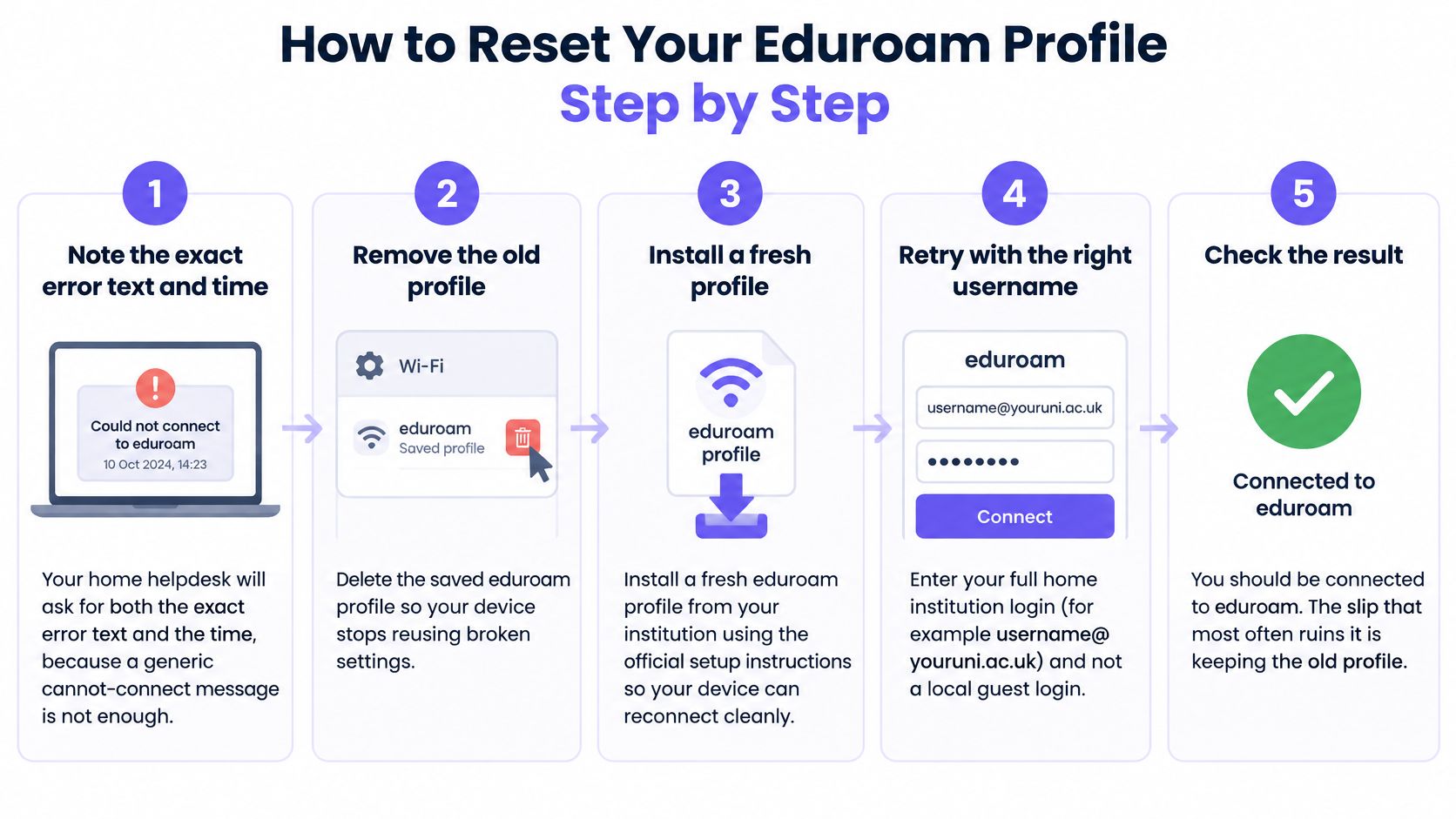
Note the exact error text and time. Take a screenshot and record the venue, including the building if you know it. A message such as authentication failed is more useful when the helpdesk can match it to a timestamp; don't paraphrase away an error code.
Forget eduroam and remove its stored profile and saved credentials. Forgetting the wireless network alone may leave an installed configuration profile or saved credential behind. On a managed device, ask IT to remove or refresh the configuration rather than deleting an organisation-managed profile yourself.
Install your home institution's approved configuration. Download it using mobile data, a trusted wired connection or another approved network. Don't copy settings from a forum or select the university you're visiting just because its name appears in an installer.
Check the complete username. Use the realm your home institution specifies, commonly an address-shaped institutional login rather than a short username. Don't assume your email address and eduroam identity are interchangeable, or enter a local guest account issued by the visited campus.
Set the device clock correctly. Enable automatic date, time and time-zone settings where available. An incorrect clock can make a legitimate certificate appear expired or not yet valid, so changing passwords won't solve that particular error.
Validate the authentication server certificate. Compare the presented server identity against your institution's published instructions before trusting it. If you can't establish that match, stop rather than selecting an option that disables validation.
Test at another participating venue when practical. Keep the same approved configuration for the comparison. Changing the profile between locations makes it harder to tell whether the improvement came from the venue or the settings.
A healthy result is more than the disappearance of an error box. The device should associate, complete authentication, receive a usable network address and connect without cycling through password or certificate prompts.
Don't keep retrying unchanged cached credentials. An account lockout can turn a configuration problem into an additional account problem.
If a clean installation still fails, keep the newly captured error. Repeating the reset without new evidence is unlikely to help the next person investigate.
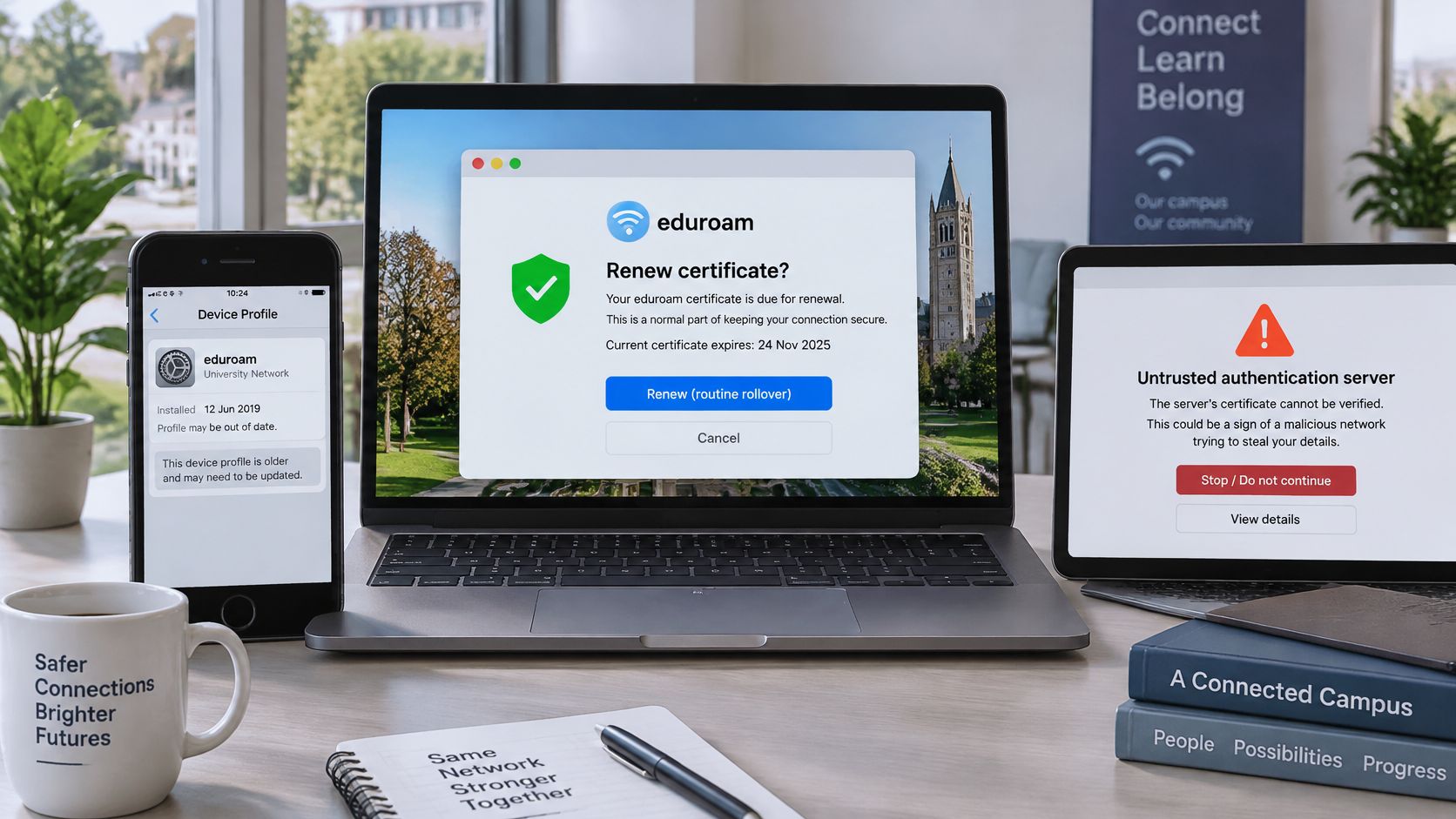
A certificate prompt isn't permission to trust whatever appears. The certificate helps your device establish that it's talking to the expected authentication server before exposing credentials to that conversation.
Legitimate certificate changes can interrupt previously working connections. Oxford's WiFi troubleshooting guidance identifies an eduroam root certificate that expired on 5 August 2025. That's a concrete reason to check institutional renewal instructions instead of assuming your password suddenly became wrong.
There are several different situations behind a similar-looking warning:
Check the server name and issuing certificate authority against information obtained independently from your home institution. If it publishes a fingerprint, compare that too, but only against a trusted copy of its instructions.
Don't use the certificate prompt itself as evidence that the certificate is legitimate. A familiar university name somewhere in the certificate details isn't a substitute for matching the published identity.
Where the expected name and issuer match, and the institutional instructions explicitly describe the renewal, follow those instructions to approve or reinstall the configuration. An unexpected prompt, mismatched name or unexplained issuer change is a reason to stop.
For administrators managing fleets, certificate-based WiFi via MDM provides useful context for distributing trust settings without asking every user to make an improvised security decision. Managed configuration should preserve server validation, not hide warnings by removing it.
Eduroam isn't a consumer service with a universal certificate that any central support agent can approve. Your home institution confirms which authentication identity your account should trust.
A connection that works after you accept an unknown certificate may be less secure than the connection that refused it.
| Operating system | Where to remove the old profile | Certificate setting to check | Common trap |
|---|---|---|---|
| Windows | Settings, Network & internet, WiFi, Manage known networks | Server certificate validation and the named server | Stale saved credentials reused silently |
| macOS | System Settings, WiFi, Details or known networks; inspect relevant entries in Keychain Access | Trust decision on the certificate prompt | Keychain retains an old credential or trust decision |
| iOS | Settings, WiFi, information icon, Forget This Network; inspect profiles under General, VPN & Device Management | Verify the certificate name on the prompt | Forgetting the network alone can leave its configuration profile behind |
| Android | Settings, Network & internet, Internet, eduroam, Forget; inspect enterprise WiFi settings | CA certificate and domain match | Menu labels differ between Android versions |
| Linux with NetworkManager | Delete the eduroam connection in network settings or use nmcli |
CA certificate and domain suffix match | Trusting a certificate chain without constraining the server identity |
Menu wording changes between releases and device manufacturers. Use these locations to find the saved connection, then apply your institution's instructions rather than copying another platform's fields blindly.
On Windows, removing a known network clears the wireless connection entry, but an institutional management system may reinstall it. If the old settings return immediately, ask the device-management team to update the deployed policy.
On macOS, distinguish a stored password from a certificate trust decision. Don't delete unrelated certificates from Keychain Access in an attempt to clear everything associated with the university.
For iPhone and iPad, inspect both the WiFi entry and any installed institutional configuration profile. After an announced certificate renewal, forgetting and rejoining may be part of the approved procedure, but an installed or managed profile may need updating separately.
Android manufacturers expose enterprise WiFi settings differently. A field labelled domain, server domain or domain suffix must contain the value your institution specifies; don't infer it from the website you normally use to read email.
Never select an option equivalent to don't validate just because a forum recommends it. That removes a security check rather than repairing the connection.
For Linux, NetworkManager exposes enough settings to create a connection that appears sensible but doesn't match institutional policy. Use the approved EAP method and inner authentication settings, and configure both the trusted CA certificate and the required server-domain constraint. Trusting the chain alone doesn't establish that the server is the one your institution intended.
If a setting is locked, treat that as an ownership boundary. Escalate to whoever manages the device instead of constructing a parallel manual connection that bypasses their policy.
Don't close the ticket because a web page loaded once. Check that the repaired configuration survives reconnection and that the device is using eduroam rather than mobile data or another remembered network.
Where roaming was the original problem, repeat the access test at another participating venue when practical. If you can't travel, record that limitation instead of claiming the roaming path has been verified.
Repeated prompts don't establish a single cause. Capture their exact wording and investigate the relevant layer rather than assuming every recurrence means an old server name.
A student authenticates cleanly at their own university, then fails at a partner institution across town. That pattern alone narrows the fault to somewhere between the visited wireless and the home identity service. The useful investigation is a sequence of boundary tests: wireless access, institutional authentication, then upstream connectivity. The Janet-hosted Moonshot presentation provides technical context for the EAP and RADIUS mechanisms involved in federated authentication.
Before changing the client, check Janet network status through Netsight and the venue's own service notices. A wider incident changes the investigation entirely. A clear national status page, though, does not prove the local campus is healthy.
Wireless access: Confirm that the client sees the eduroam SSID and reaches the enterprise authentication exchange. Controller logs can distinguish radio association problems from subsequent EAP failures, and collapsing both into a generic wireless error sends the fault to the wrong team.
Authentication: Obtain the EAP exchange or the relevant controller and RADIUS records. Check the configured method, certificate trust, realm routing and backend identity response, then establish which organisation generated the rejection or where the request timed out. A rejection issued by the home identity service travels back through the visited network's logs, so read the full chain rather than stopping at the first error.
Upstream connectivity: After authentication and authorisation succeed, inspect the assigned VLAN, DHCP transaction, DNS resolution and external reachability. An authenticated client placed into an unusable VLAN needs a different repair from an account rejected by its home identity service.
Keep coverage, identity and post-authentication access as separate fault categories so each reaches the team that owns it. For a broader look at campus network design, WiFi for students covers the considerations behind that split.
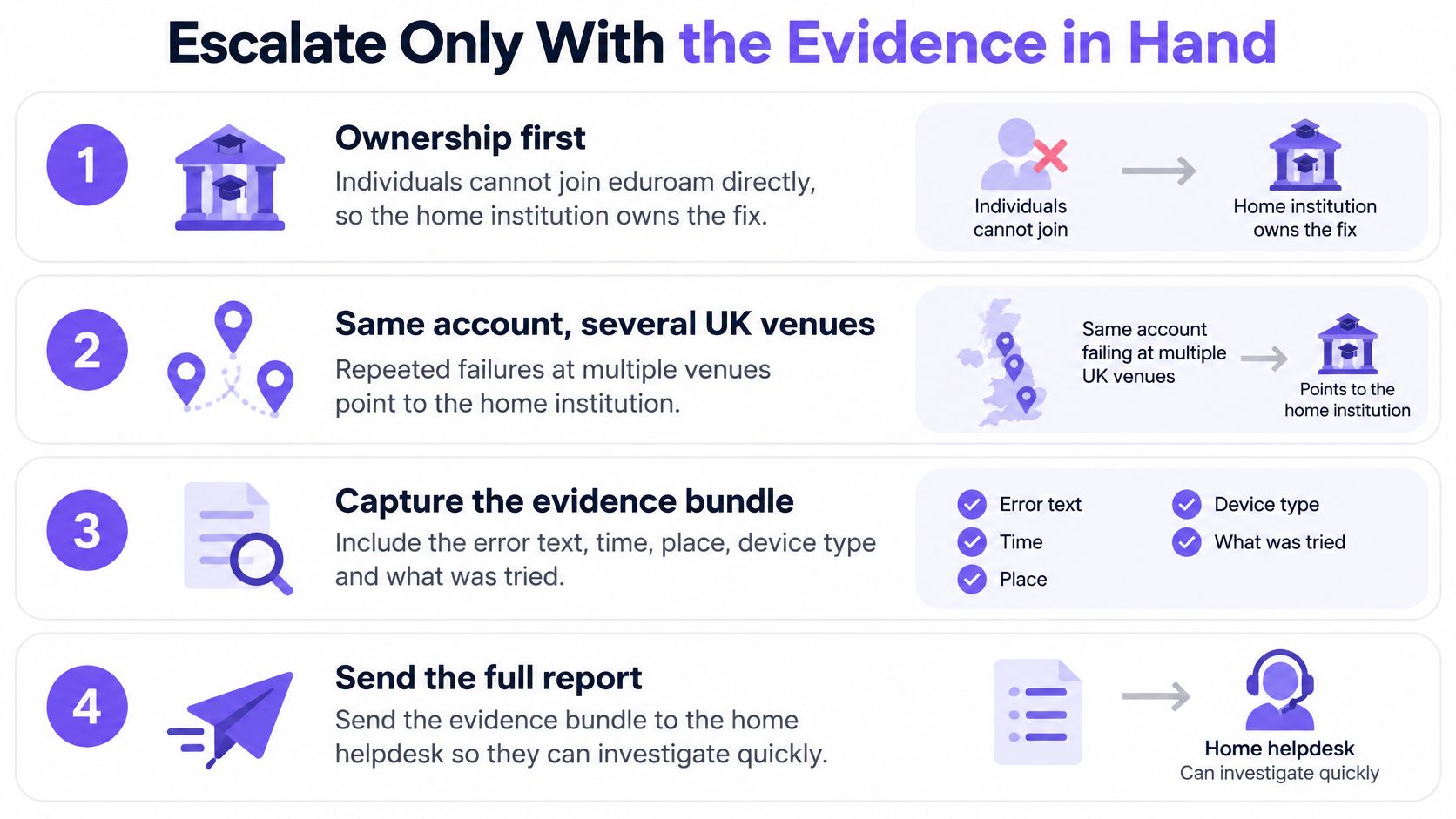
One controlled, repeatable failure is worth more than a folder of undated screenshots. Record:
Redact passwords and inner identities, and sanitise any outer identity containing personal information before sharing across organisations. Use approved support channels for logs rather than public discussion threads.
Stop automated reconnection while investigating a suspected credential rejection. Background retries can complicate the timeline and risk locking the account.
Don't substitute generic shared credentials for the user's identity, and don't disable certificate validation to make a test pass. Both changes alter the security conditions under diagnosis, and the second can expose the user to an impersonated authentication server, the exact attack eduroam's certificate checks exist to prevent.
Failure rates vary between venues, so compare your own outcomes by venue, device platform and failure stage, using a consistent definition of a successful connection. A device that always stalls at the same stage points to one layer; a failure that shifts stages between attempts points back to client configuration drift.
Individuals can't join eduroam directly. Eduroam UK troubleshooting guidance directs users towards their member organisation, making the home helpdesk the appropriate starting point for account and authentication problems.
If an account fails across participating venues, ask the home institution to examine its EAP and RADIUS rejection records. If the failure is confined to a particular venue, involve that venue's network team, but don't assume local ownership solely because another account works there: realm-specific routing can affect visitors selectively.
Once repeated attempts risk account lockout, stop and hand over the evidence.
For partners supporting the surrounding campus network, we deploy on existing infrastructure from Cisco, Cisco Meraki, HPE Aruba Networking, Ruckus Networks, Extreme Networks, Juniper Mist and Ubiquiti. That deployment flexibility doesn't change who owns an eduroam identity.
Our Staff WiFi offers identity-based access with automatic device provisioning and revocation tied to the customer's identity provider, without shared passwords. If you're improving campus connectivity alongside eduroam, visit Purple to discuss staff, guest and student-residence access while preserving the institution's federated authentication responsibilities.
Join 80,000+ venues already running on Purple. No targets, no minimums, just bigger deals.