Securing Wi Fi for UK MSP Estates
A 2026 MSP guide to securing wi fi: control-plane risks, SSID and VLAN design, 802.1X, guest isolation and the checks that prove it.
Find out what is a WPA2 password, how it differs from WPA2-Enterprise, the risks of shared keys and how UK teams can move to stronger access.
A WPA2 password is the shared pre-shared key that WPA2-Personal networks use to admit devices and help derive their encryption keys. If everyone uses the same secret, though, how does the network know when someone should no longer have access?
That's the gap behind a familiar Wi-Fi password box. You're not usually signing into a personal account. You're proving that your device knows a secret that other authorised devices also know.
For a household, that arrangement can be convenient. For an IT team supporting staff, contractors and visitors, it creates a practical problem: connecting someone is easy, but removing only that person isn't. Understanding that difference helps you choose the right password, troubleshoot connection failures and recognise when shared-password Wi-Fi no longer suits the organisation.
Think of a WPA2-Personal network as a building with a shared door code. Someone gives you the code, you enter it, and the door opens. The door doesn't know whether you're a new employee, a visiting contractor or someone who stopped working there.
A WPA2 password, also called a passphrase or pre-shared key, serves a similar purpose for wireless access. WPA2 is the security protocol, the set of rules devices follow to authenticate and protect wireless communications. The password is the credential used within its Personal mode.
GOV.UK's workplace wireless guidance distinguishes this shared-secret approach from Enterprise authentication, where users or devices authenticate individually. That distinction answers the practical question behind “what is a WPA2 password”: it's a network access credential, not a personal identity.
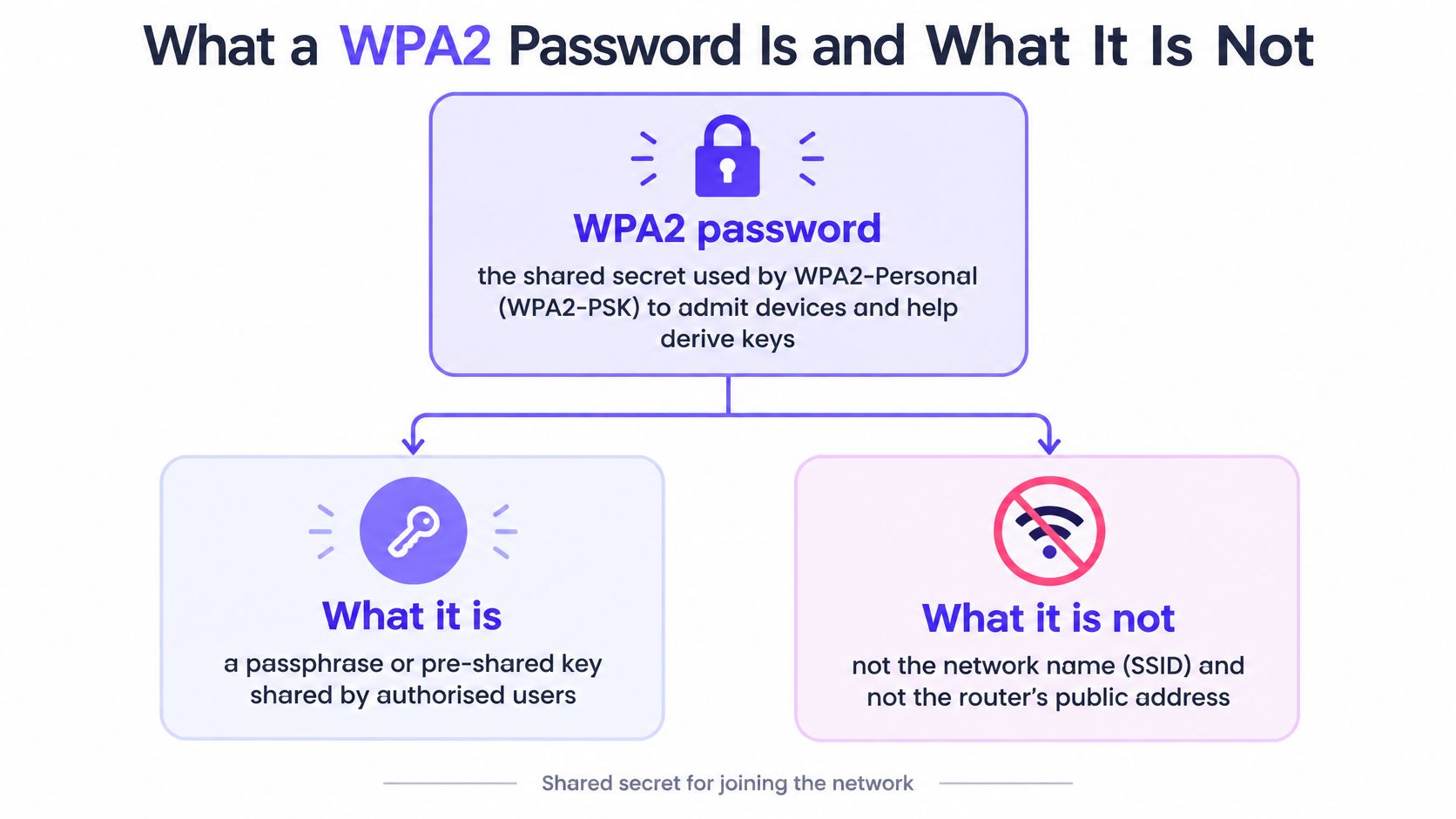
Say you're setting up a laptop in a small office. The router label lists a wireless network name, a wireless key and administrator credentials. Those details have different jobs:
The Information Commissioner's Office's Wi-Fi security advice recommends replacing default router passwords with difficult-to-guess alternatives. It also distinguishes WPA2 from obsolete WEP and WPA protection, and identifies WPA3 as stronger where compatible devices support it.
A device asking for a WPA2 password therefore isn't asking you to invent a new type of credential. It normally wants the existing wireless passphrase for the network you selected.
Start with the router label, the router's management page or the setup card supplied by the internet provider. A printed key only remains useful if nobody has changed it since installation.
If the label doesn't work, check a device that already connects successfully. Windows, macOS and many phones can reveal saved Wi-Fi credentials after you authenticate locally. On a managed business device, ask the authorised IT administrator rather than copying credentials into an unsecured message.
Treat a factory reset as a last resort. It can restore default wireless details, but it can also remove other configuration and leave devices needing attention.
Practical check: Match the network name first, then identify whether the screen wants the wireless key or the router administrator login.
Don't assume a security alert means the printed passphrase has been exposed, either. Password disclosure and a flaw in the router's software are different problems, requiring different responses.
| Feature | WPA2-Personal (PSK) | WPA2-Enterprise |
|---|---|---|
| Credential type | One shared passphrase for all devices | Individual username and password, or a device certificate |
| Authentication method | Pre-shared key checked through the access point's authentication exchange | 802.1X with a RADIUS authentication service, which may be cloud-hosted |
| Removing one person's access | Requires replacing the shared key on trusted devices | Disable the user or revoke the certificate, with session termination configured appropriately |
| Encryption key separation | A passphrase holder with the relevant captured handshake can derive a client's keys | Correctly configured individual certificate authentication separates clients' credentials and keys |
| Typical use | Homes and small offices with few devices | Staff networks, larger businesses and managed estates |
| Setup effort | Low, configure and distribute a passphrase | Higher, configure authentication services, certificates or identity integration |
The most useful distinction is shared proof versus individual proof. Personal mode asks whether a device knows the common secret. Enterprise mode can ask whether this particular user or device is authorised.
Both modes can protect wireless traffic. Enterprise isn't just Personal mode with a longer password, and Personal mode doesn't mean every device uses an identical session encryption key.
A Personal network normally asks for the Wi-Fi passphrase alone. An Enterprise network may ask for a username, password and authentication settings.
That's a clue, not a definitive test. A device with a pre-installed certificate can connect to an Enterprise network without presenting a username-and-password box at all. A browser page asking visitors to accept terms or enter an email address is also different from the underlying wireless authentication.
For managed laptops and phones, certificate-based Wi-Fi provisioned through mobile device management can remove much of the manual configuration. The management platform installs the connection profile and certificate, rather than asking staff to interpret security prompts themselves.
802.1X is the framework for controlling network access through individual authentication. A RADIUS service typically handles the authentication decision, checking the presented credentials and returning an allow or deny response.
Certificates provide a device or user with cryptographic proof of identity. Proper configuration also lets the connecting device verify that it's talking to the intended authentication service, rather than trusting any server that presents a login prompt.
This needs ownership. Someone must maintain certificate validity, authentication policies, device profiles and revocation procedures. Moving to Enterprise without assigning those responsibilities can replace password-sharing problems with avoidable login failures.
For a home or a small, stable site, Personal mode can remain a reasonable operational choice. For an organisation where staff regularly join, move roles and leave, individual access control is usually the more useful design goal. Business access points often offer both modes, although their settings may use labels such as PSK, Personal, Enterprise or RADIUS.
When you enter the wireless passphrase, your laptop does not broadcast it directly to the router. Instead, the device and access point use cryptographic calculations to prove that they possess matching key material.
The process below is a simplified picture of joining a WPA2-Personal network. An access point is the component that provides the wireless connection, whether it's built into a home router or installed separately on an office ceiling.
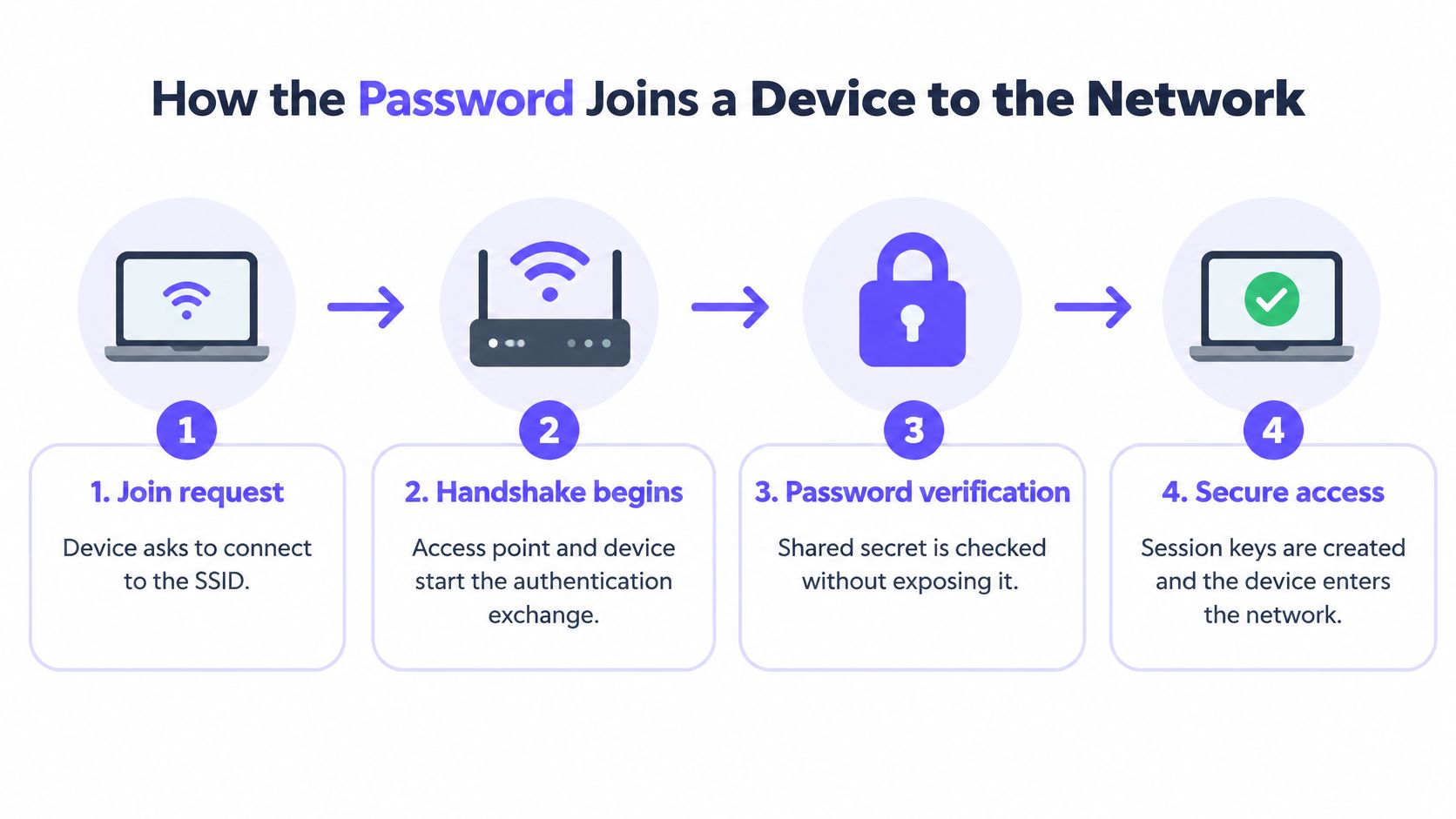
The device selects the network. Your laptop finds the SSID and requests a connection. Selecting the right name identifies the intended network, but doesn't yet prove that your laptop is authorised.
The authentication exchange begins. The access point and device exchange information, including fresh random values called nonces. These values help make the resulting session keys specific to the connection.
Both sides derive the required keys. The passphrase and SSID are used to derive shared master key material. The handshake then uses that material, the nonces and device addresses to derive session keys, rather than using the human-readable password directly to encrypt every packet.
They confirm matching key material. The exchange establishes that the necessary keys agree and installs the keys used to protect traffic. An incorrect passphrase prevents the device from completing this successfully.
The important separation is between the passphrase you type and the encryption keys the equipment calculates. You keep using the same familiar credential, while the equipment handles the connection-specific cryptographic work.
The password itself isn't transmitted over the air. However, someone who captures the relevant authentication exchange can use it to check password guesses offline.
They don't have to keep submitting guesses to the office router. They can perform the calculations on their own equipment and compare the results against the captured exchange. Router login lockouts therefore don't solve this particular password-guessing problem.
The NCSC's connecting securely exercise recommends a strong, memorable password, such as three random words, alongside WPA2 or WPA3 rather than legacy wireless protection. The practical lesson is to make the secret unpredictable, not merely complicated-looking.
A captured handshake isn't the password. It can nevertheless give an attacker a way to test whether a guessed password is correct.
A business name followed by a familiar date remains predictable even if someone replaces a letter with a symbol. A random combination doesn't follow the same obvious pattern.
Don't interpret this as a ban on all dictionary words. Randomly selected, unrelated words can form a strong passphrase. The weakness is a predictable phrase, personal information or reused credential that someone has a reason to try.
A strong Wi-Fi password can still be held by the wrong person. That's the operational weakness of treating possession of a shared secret as continuing permission to connect.
Consider a hypothetical office with staff laptops, a shared printer and a tablet used by visitors. An employee leaves, their email account is disabled and their laptop is returned. Their personal phone, however, still remembers the office Wi-Fi passphrase.
Disabling the email account doesn't alter what the wireless access point accepts. Unless another control blocks it, the phone can still authenticate when it's within range.
The IT administrator can replace the shared passphrase, but that creates work beyond the departing employee's device:
The difficult part isn't typing a replacement into the router. It's identifying every legitimate recipient and updating their equipment without handing the new secret back to someone whose access should end.
For an MSP, that work extends across customer contacts, site opening hours and devices outside central management. The service desk needs to know who owns each exception, rather than discovering it during the change.
Access rule: A password's strength doesn't cancel the permissions of someone who already knows it.
A passphrase on a whiteboard, in an old onboarding document or in a forwarded message can remain usable until it's replaced. Making it longer doesn't address that disclosure.
By contrast, a protocol or implementation flaw may require software updates. The NCSC's KRACK guidance explains that KRACK didn't allow an attacker to derive the WPA2 encryption key or password, so changing the Wi-Fi password wasn't automatically required solely because of that vulnerability. Affected equipment still needed security updates.
These are separate controls: credential replacement addresses an exposed secret; patching addresses vulnerable software. Neither substitutes for the other.
If the business needs to remove a departing employee without coordinating a network-wide credential change, it needs an access model that recognises individual users or devices.
Choose a passphrase form that suits the people and equipment using the network. The table pairs the NCSC's three-random-words approach with practical change triggers; the triggers are operational recommendations, not claims that every departure carries identical risk.
| Network type | Recommended passphrase | When to change it |
|---|---|---|
| Home network | Three random unrelated words, following the NCSC approach | When someone who should no longer connect retains the key |
| Small workplace on WPA2-Personal | Three random unrelated words where people type it, or a generated passphrase for managed devices | On staff departure where access must end, and under a documented review policy |
| Higher-risk WPA2-Personal deployment | A longer generated passphrase from a password manager, provisioned centrally | At policy-defined intervals and after suspected disclosure |
| Guest network | A separate, unique passphrase, never the staff key | Regularly under the guest-access policy and after uncontrolled sharing |
Treat those as choices for different operating conditions, not interchangeable guarantees. Random unrelated words are easier for a person to enter accurately on a phone, console or camera. A generated string suits equipment whose credentials IT provisions centrally and rarely has to type by hand.
The strength question sits at the edge of the trust boundary: could an outsider guess or capture the secret? The lifecycle question sits inside it: who still knows the secret, and should they? A strong passphrase can fail the second test the day after a leaver keeps it.
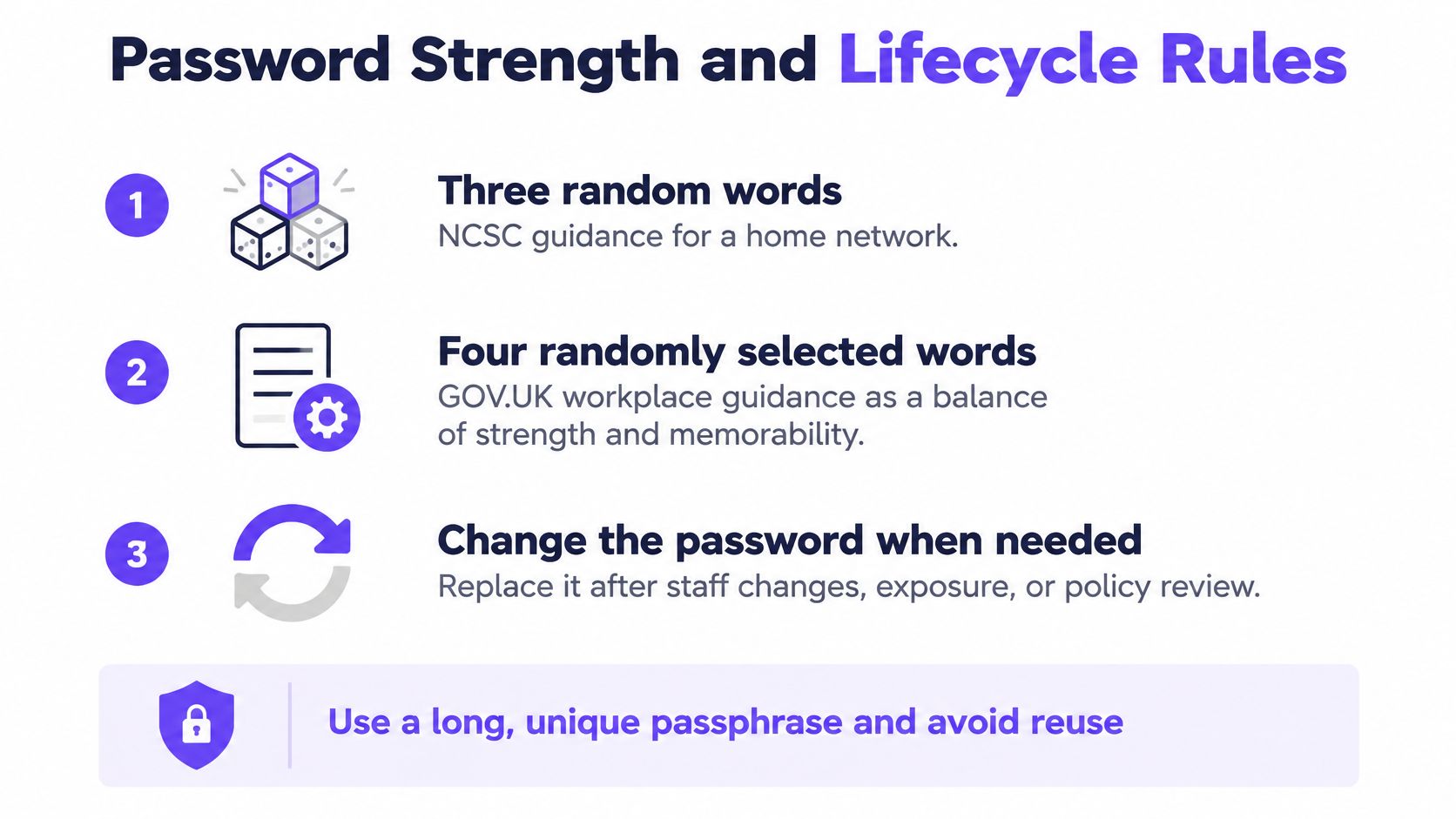
Use a password manager's generator rather than inventing a clever variation on the company name. If you choose words, generate them randomly rather than building a sentence about the business.
Then make the lifecycle explicit:
If a router label contains an obsolete factory key, make that clear in the asset record. Don't stick the current staff passphrase on equipment accessible to visitors just to keep the label accurate.
Schedule credential changes around business operations. Update managed profiles where possible, arrange access to shared equipment and give the service desk a clear description of the expected symptoms: the right password refused on one device usually means an old profile, while refusal everywhere points to a change that was not fully applied.
A routine interval is useful only if someone owns the work. If administrators repeatedly postpone changes because reconnecting devices is too disruptive, consider whether automatic access revocation is a better requirement than more frequent manual password changes.
The clearest sign that a password needs replacing isn't its age alone. It's that the organisation can no longer confidently identify who possesses it and whether those people should still connect.
Start with a known configuration before investigating individual devices. For WPA2 deployments, use AES/CCMP, the modern encryption configuration normally associated with WPA2, where supported. Disable obsolete WPA/TKIP modes and don't leave the network open.
Replace default administrative and wireless credentials, keep access point firmware current, and place visitors on a separate network with appropriate isolation. Record the intended settings so technicians don't restore insecure compatibility options merely to clear a support ticket.
| Symptom | Likely cause | Fix |
|---|---|---|
| Devices refuse the correct password after a router reset | Factory defaults restored or a replacement passphrase hasn't been applied everywhere | Confirm the SSID, then enter the current passphrase on each device |
| Phones connect to the wrong network or keep failing | Saved profile or duplicate SSID | Forget the affected profile and reconnect to the intended network |
| A former employee still connects | Shared passphrase remains valid | Replace the passphrase and update trusted devices |
| Clients drop often or connect slowly | Legacy WPA/TKIP or incompatible mixed encryption settings may be involved | Use WPA2-AES/CCMP on supported equipment, then test radio and network conditions |
| Old devices stop working after tightening settings | Hardware doesn't support the required security mode | Replace the device or place it on a separately isolated legacy network |
| Enterprise login fails for all users | Expired server certificate or RADIUS configuration mismatch | Check certificate validity, trust chain and RADIUS configuration |
These are starting points, not automatic diagnoses. Slow connections can also result from interference, weak coverage or congestion. A repeated password prompt doesn't prove that the password is wrong.
A common cutover mistake is updating the access point but leaving old credentials in client profiles. Phones and laptops then keep attempting to use what they already know.
On an unmanaged device, forgetting the network and reconnecting often clears that mismatch. On a centrally managed laptop, correct the deployed wireless profile instead, otherwise management software may reinstall the incorrect settings.
For Enterprise failures, inspect the authentication logs. If every user fails together, check shared infrastructure such as server certificates, time synchronisation and communication between the access point and authentication service. If a single device fails, inspect its profile, certificate and authorisation status.
Broader Wi-Fi security deployment practices should also cover isolation, administration and maintenance, not just the wireless password field.
Keep the fix tied to the evidence. Replace credentials when permission must change, correct security-mode mismatches when compatibility is the issue, and repair authentication configuration when Enterprise requests fail. Changing unrelated settings makes the next fault harder to diagnose.
Choose a migration path based on the problem you need to solve. Stronger wireless authentication, individual revocation and automated device management are related goals, but they aren't the same requirement.
An organisation can improve its wireless protocol while retaining shared-password administration. It can also introduce individual access before every legacy device is ready for the newest protocol.
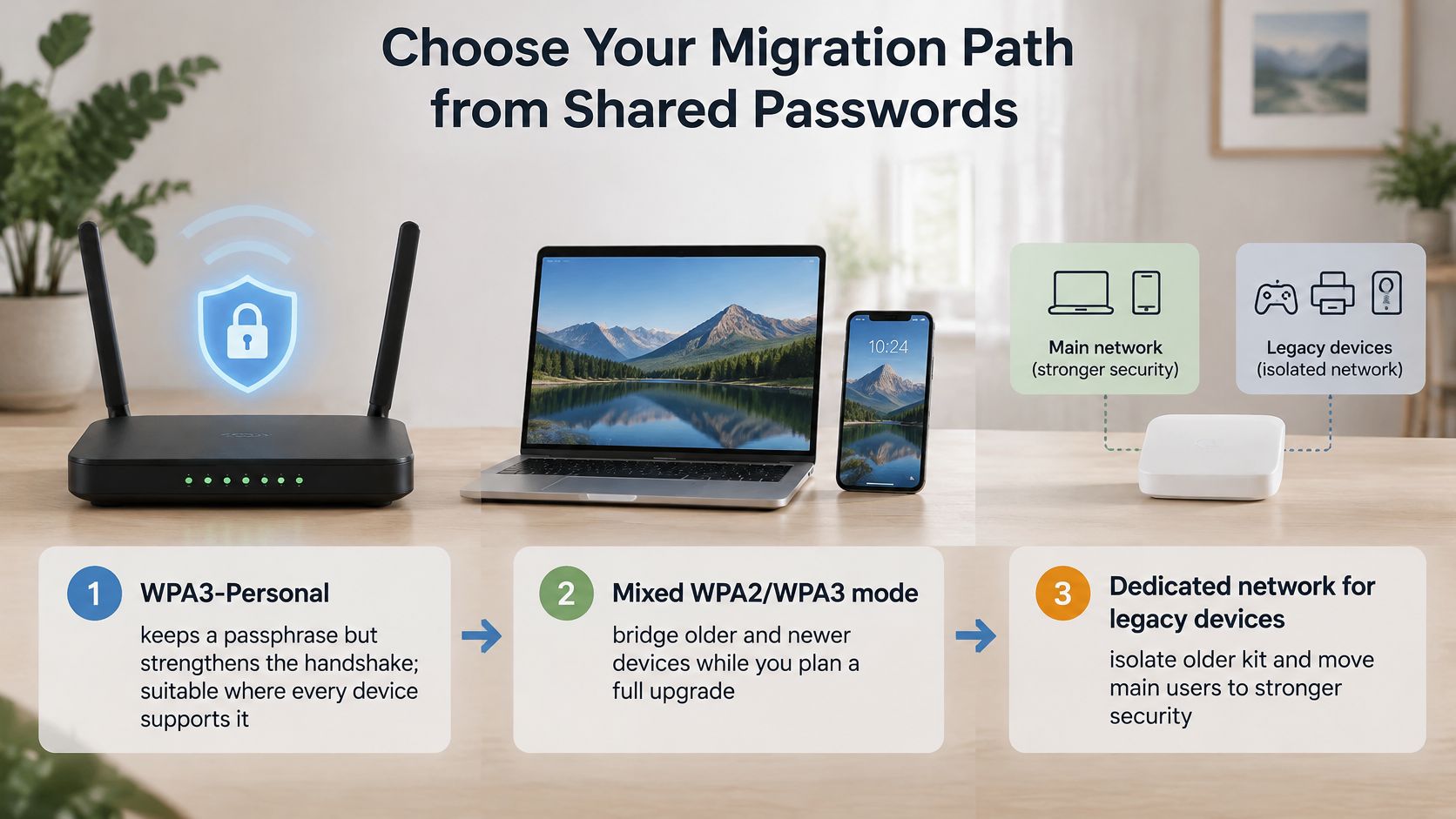
WPA3-Personal improves protection around password-based authentication while retaining a familiar passphrase-based experience. It suits sites where the access points and connecting devices support it.
However, it doesn't create individual staff identities. If the requirement is to stop a departing employee connecting without disrupting colleagues, changing the Personal-mode protocol alone doesn't satisfy it.
Test representative equipment before enforcing a new mode. Include printers, meeting-room systems and browserless appliances, not just recently issued laptops.
WPA2-Enterprise or WPA3-Enterprise introduces individual authentication through an access-control framework. Choose this path when the organisation needs named access decisions and can operate the required authentication service.
A pilot should test more than successful onboarding. Verify that devices validate the authentication server, certificates renew correctly, and disabling an identity prevents further access as intended.
Also test what happens to an existing connection. Credential revocation, cached authentication and active-session termination need configuration that matches the organisation's offboarding expectations.
Identity-based or passwordless access adds an operational layer to Enterprise networking. A directory records who belongs to the organisation, while provisioning workflows deliver the appropriate device credentials and remove access when eligibility ends.
This is particularly useful when administrators already manage joiners, movers and leavers through an identity provider. The aim is to avoid maintaining a separate, easily forgotten Wi-Fi permission process.
Choose the access model that lets your team enforce its offboarding policy, not just the strongest-looking option in a router dropdown.
If devices lack WPA3 support, retain a properly maintained WPA2-AES configuration while planning individual access. Where staff turnover is frequent and an authentication or identity platform already exists, Enterprise is a practical direction. Keep unsupported legacy equipment isolated rather than weakening the entire staff network.
For organisations replacing shared passwords, our Staff WiFi uses WPA3-Enterprise with automatic device provisioning and revocation tied to the customer's identity provider through the Purple app. It uses no shared passwords and works with Entra ID, Google and Okta.
Start with an inventory of every device and user group. Record the security mode each uses, identify who needs individual revocation, and choose a migration path before changing the production network.
Purple offers identity-based Staff WiFi so your team can replace shared network passwords with access tied to the customer's identity provider. Visit Purple to discuss how automatic provisioning and revocation could fit your customers' existing Wi-Fi infrastructure and staff offboarding process.
Join 80,000+ venues already running on Purple. No targets, no minimums, just bigger deals.