PMS in hotel: Modules, integrations and data flows
Learn what a PMS in hotel operations does, how its modules and integrations connect, UK GDPR safeguards and a practical rollout checklist.
WiFi for students explained for UK providers: campus vs halls, 802.1X security, capacity planning, WiFi 6E and the metrics that prove it works.
60% of respondents experienced WiFi connectivity problems on or off campus in Jisc's 2024/25 survey of 15,398 higher-education students at UK providers. That reframes WiFi for students: the problem isn't buying a faster internet connection alone. Providers need to know who can connect, whether their devices work, and how they'll continue studying when something fails.
For managed service providers, integrators and accommodation operators, those are design decisions, not help-desk details. A credible service combines identity, isolation, capacity and recovery, then measures whether students can use it.
| Setting | Typical users and devices | Main requirement | Usual failure point |
|---|---|---|---|
| Lecture rooms and libraries | Dense groups, several devices each | Airtime capacity at peak | Too many clients on one access point |
| Halls of residence | Evening users, gaming consoles, laptops and video calls | Per-unit isolation and steady throughput | Shared password and peak-evening congestion |
| Off-campus private rentals | One household, mixed devices | Simple setup and a clear support route | Weak signal through thick walls and unclear ownership of support |
| Study spaces and cafés | Short sessions, frequent roaming | Seamless reconnection | Repeated captive portal sign-in |
| Timed online assessments | One critical session per student | Explicit uptime commitments and a tested fallback route | Dropped connection with no backup access |
The connectivity problems students report span both campus and off-campus locations. A university can have well-designed lecture-room coverage while residents struggle in bedrooms, or reliable halls while students repeatedly lose access when moving between teaching buildings.
Start with the learning journey, not the building inventory. Record where students attend live teaching, upload coursework, use specialist software and sit assessments. Then identify which organisation controls each connection and who takes responsibility when it fails.
Take a hypothetical 300-room halls block. During the evening, residents could be gaming, making video calls, downloading updates and completing coursework at the same time. Counting bedrooms tells you the size of the property, but it doesn't tell you how many active devices share each radio.
Walk the building and map those activities onto rooms and communal areas. A kitchen lounge may attract more concurrent users than nearby bedrooms, while a corridor-mounted access point may struggle to serve laptops behind fire doors. Design for the busiest credible period, then test that assumption during occupancy.
Don't promise guaranteed uptime for an assessment because the internet circuit has a service-level agreement. The access point, authentication service, local power and assessment platform can each interrupt the session. Establish a wired study location or another approved access route, and agree with academic staff how students report disruption.
Design priority: An assessment needs a recovery procedure, not just a reassuring speed test.
Teaching teams should describe what students do online. A browser-based writing exercise, live collaboration session and remotely supervised assessment place different demands on continuity, support and privacy.
For those conversations, Kuraplan's guide to AI in schools provides context for discussing classroom technology use. The network designer's job is to translate the institution's chosen activities into access requirements, rather than assume every educational application behaves like video streaming.
An education WiFi deployment also needs a clear boundary between institutional access and accommodation services. Establish who handles account problems, room-level coverage complaints and equipment that students bring themselves.
Before drawing the architecture, get answers to these questions:
| Option | How students join | Strength | Limitation |
|---|---|---|---|
| Shared pre-shared key SSID | One password for everyone | Simple to set up | No per-user revocation; lateral access unless separately blocked |
| Captive portal | Browser sign-in when a session requires it | Usually no wireless profile configuration | Adds friction and fails on some browserless devices |
| 802.1X with RADIUS | Institutional credentials or certificates, then automatic join | Per-user revocation and auditability | Needs identity integration and client support |
| Cloud overlay on existing hardware | Identity-linked access managed centrally | Can provide per-unit isolation and self-service management | Requires compatible hardware and supported enforcement features |
A shared password is easy to distribute and difficult to govern. If every resident knows the same key, a departing student retains that credential until somebody changes it. Rotating it then disrupts everyone else, including devices whose owners aren't around to reconnect them.
The password alone doesn't determine whether residents can reach one another's devices. That depends on segmentation and isolation controls. Nevertheless, a building-wide key gives you no useful individual offboarding mechanism, and it encourages staff to treat access as a noticeboard instruction rather than an account lifecycle.
Captive portals make sense for short-stay visitors who need a browser-based access journey. They're less suitable as the default for enrolled students carrying devices between teaching rooms and accommodation. Session expiry can force another sign-in, and consoles, smart TVs and other browserless equipment may not complete the journey.
A portal doesn't necessarily prompt on every visit. Its behaviour depends on session persistence and device recognition. Test repeat visits and expired sessions rather than accepting a demonstration of the first successful login.
802.1X with RADIUS moves authentication into the network access process. The institution can associate access with an individual account or certificate and remove it centrally. The trade-off is operational discipline: certificate trust, wireless profiles, identity availability and client compatibility all need an owner.
Don't assume an ordinary password form and certificate-based authentication provide the same protection. Choose the authentication method deliberately, distribute the correct trust settings, and make sure students aren't trained to accept unexplained certificate warnings.
A cloud overlay can add identity management and policy orchestration without replacing every access point. In accommodation, it can also coordinate private resident networks across shared infrastructure. That's useful when residents need their own devices to communicate without exposing them to neighbouring units.
An overlay isn't a radio upgrade. It won't fix poor access-point placement, inadequate cabling or unsupported switching features. Verify how it applies segmentation, what happens during a cloud-service interruption, and which existing controllers and firmware versions it supports.
Use identity-based access for enrolled students and staff, visitor access for short stays, and private resident networks where people need an at-home device experience.
Before proposing a migration, inspect:
The right architecture is the one the institution can operate throughout enrolment, residence changes and departures, not merely demonstrate during installation.
Onboarding starts in the identity system, not on the WiFi login screen. If enrolment status, account activation and tenancy dates disagree, the network team inherits exceptions it can't resolve safely.
This process view shows the user journey from identity connection to wireless access.
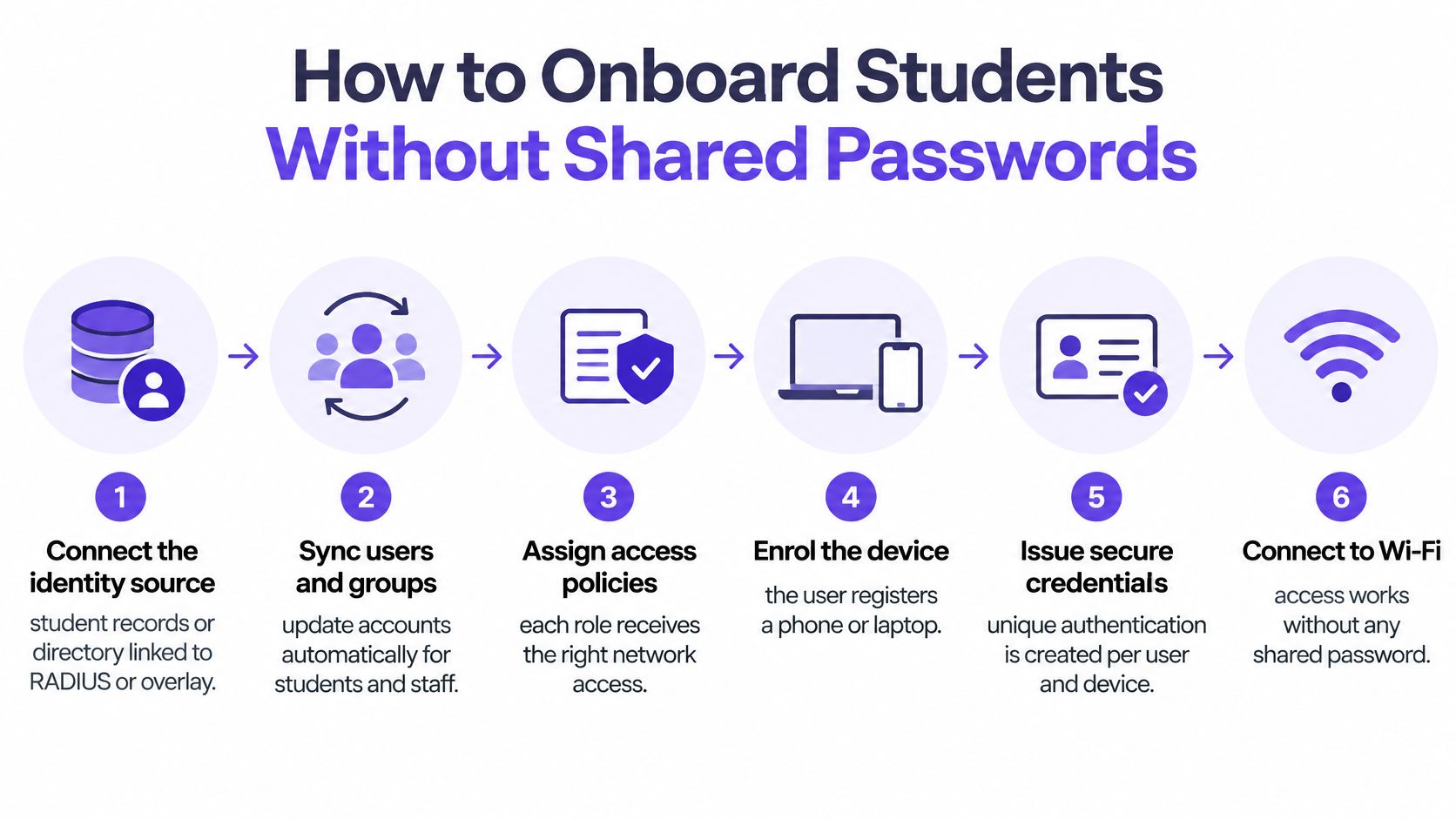
Connect the identity source because eligibility must come from an authoritative record. Link the institution's directory or student-record workflow to the RADIUS or overlay service using a supported integration. Agree which system decides whether somebody is enrolled, employed or entitled to accommodation access. Don't let a manually maintained spreadsheet become the permanent authority.
Define access groups because a valid account doesn't imply unrestricted access. Create student, staff, guest and device-remediation policies, with appropriate VLAN assignments and firewall rules. Include dual-role users, such as postgraduate students who also teach, so the policy doesn't accidentally remove access they need.
Test first join on Windows, macOS, iPhone and Android because profile failures are platform-specific. Use freshly configured test devices rather than laptops that already trust the institution's certificates. Test an incorrect password, an expired certificate and a device returning after inactivity. The support-generating mistake is validating only the happy path on a technician's managed laptop.
Provision credentials automatically because manual distribution creates delays and inconsistent access. Trigger eligibility from approved enrolment or employment status, then provide a clear device-enrolment journey. For managed equipment, certificate-based WiFi through MDM can distribute authentication material without asking users to configure it themselves. Keep certificate renewal and device replacement in the same operational workflow.
Create a remediation route because not every student arrives with a supported, personally owned device. In 2024/25, 37% of UK higher-education students said they'd lacked access to a suitable device at some point during their studies, according to Jisc's account of students' digital experience. Include loan laptops, older operating systems and inaccessible setup instructions in your testing. Provide a restricted setup network or another approved connection method, plus a help page students can reach before normal access works.
Schedule revocation because access should end when entitlement ends. Use the confirmed leaver or end-of-tenancy date, with an approved process for extensions and mistakes. Test whether disabling an account also terminates existing sessions, rather than merely blocking the next authentication attempt. Remove device credentials when equipment is lost, returned or reassigned.
Keep the help page concrete: supported platforms, setup instructions, expected certificate details, the information to include in a ticket and a contact route that works while offline. A screenshot of a successful connection isn't enough. Students need to recognise the failure they're experiencing and know what to do next.
Returning access deserves its own test. Newcastle's public WiFi has delivered 650k uninterrupted reconnections. That's a public-network example, not a student onboarding target, but it illustrates why repeat access should be measured separately from initial registration.
Working onboarding means most eligible students complete first join without a help-desk ticket. Review term-start contacts by platform and failure stage. If students repeatedly reach the same dead end, fix the profile, instructions or remediation route rather than adding another generic FAQ.
Students don't consume WiFi as isolated users with a single device. A laptop, phone and console may all associate with the network, while only some transmit heavily at a particular moment. Associated devices, active devices and airtime consumption are different measurements.
Clients share airtime on each radio. Retransmissions, weak signals and competing transmissions can make applications sluggish before the internet circuit is full. Buying more upstream bandwidth won't remove that bottleneck.
| Band | Role | Strength | Limitation |
|---|---|---|---|
| 2.4 GHz | Legacy and IoT devices | Supports older equipment | Congestion and interference constrain capacity |
| 5 GHz | Compatibility baseline for student access | Works with most student devices | Still needs careful coverage and channel planning |
| 6 GHz | Extra capacity where devices support it | Additional airtime | Older devices cannot associate |
Jisc's guidance on WPA3, WiFi 6E and eduroam says band, channel width, power and wireless-standard choices should reflect local demand and the physical environment; eduroam should remain available at least on 5 GHz when deploying 6 GHz. Treat the newer band as an additional capacity layer, not permission to abandon compatible access.
The band comparison is a starting point for a survey, not a universal placement plan.
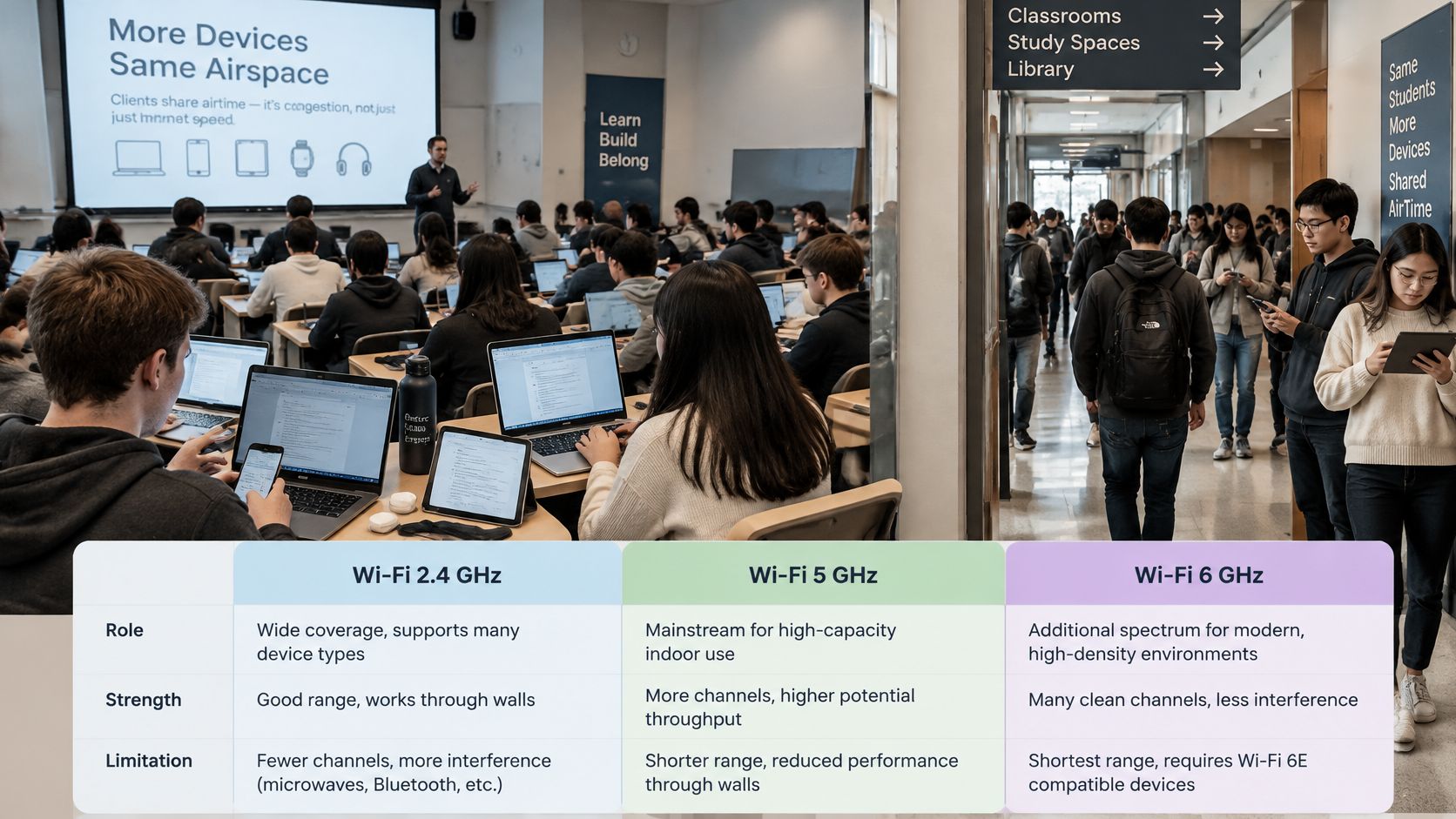
Measure where students sit. Record wall construction, fire doors, neighbouring access points and channel reuse, then compare signal conditions with application performance. A strong signal icon doesn't prove there's usable airtime.
Use controller telemetry alongside a wireless survey tool. Inspect channel utilisation, retries and active-client distribution during the busiest period. If neighbouring radios repeatedly compete on the same channel, adding another access point without redesigning channel reuse may worsen performance.
Coordinate band steering on multi-band networks, but don't assume the controller can force every client to make the ideal choice. Client behaviour differs. Test whether devices reconnect smoothly and retain usable coverage after steering changes.
Apply quality of service to protect latency-sensitive traffic, including video calls and approved assessment traffic, from bulk transfers where classification is reliable. Validate the policy across the wireless network and uplink. Prioritisation can manage queues, but it can't create capacity or keep an exam running through a power failure.
Avoid giving every educational service the highest priority. If everything is preferred, nothing is. Also check whether encrypted application traffic can be classified accurately before promising application-specific treatment.
Before ordering hardware, collect:
Add newer-band capacity where measured demand justifies it. Retain a usable compatibility layer throughout the estate, and validate performance with the actual client mix rather than a technician's newest laptop.
Security acceptance should produce test evidence, not just a screenshot of enabled settings. Jisc's eduroam deployment guidance specifies WPA2-Enterprise with AES-CCMP, rejects WEP, WPA and TKIP, and describes dedicated access-network segmentation and address logging.
Use the visual checklist as a handover aid, then verify the controls against the live configuration.
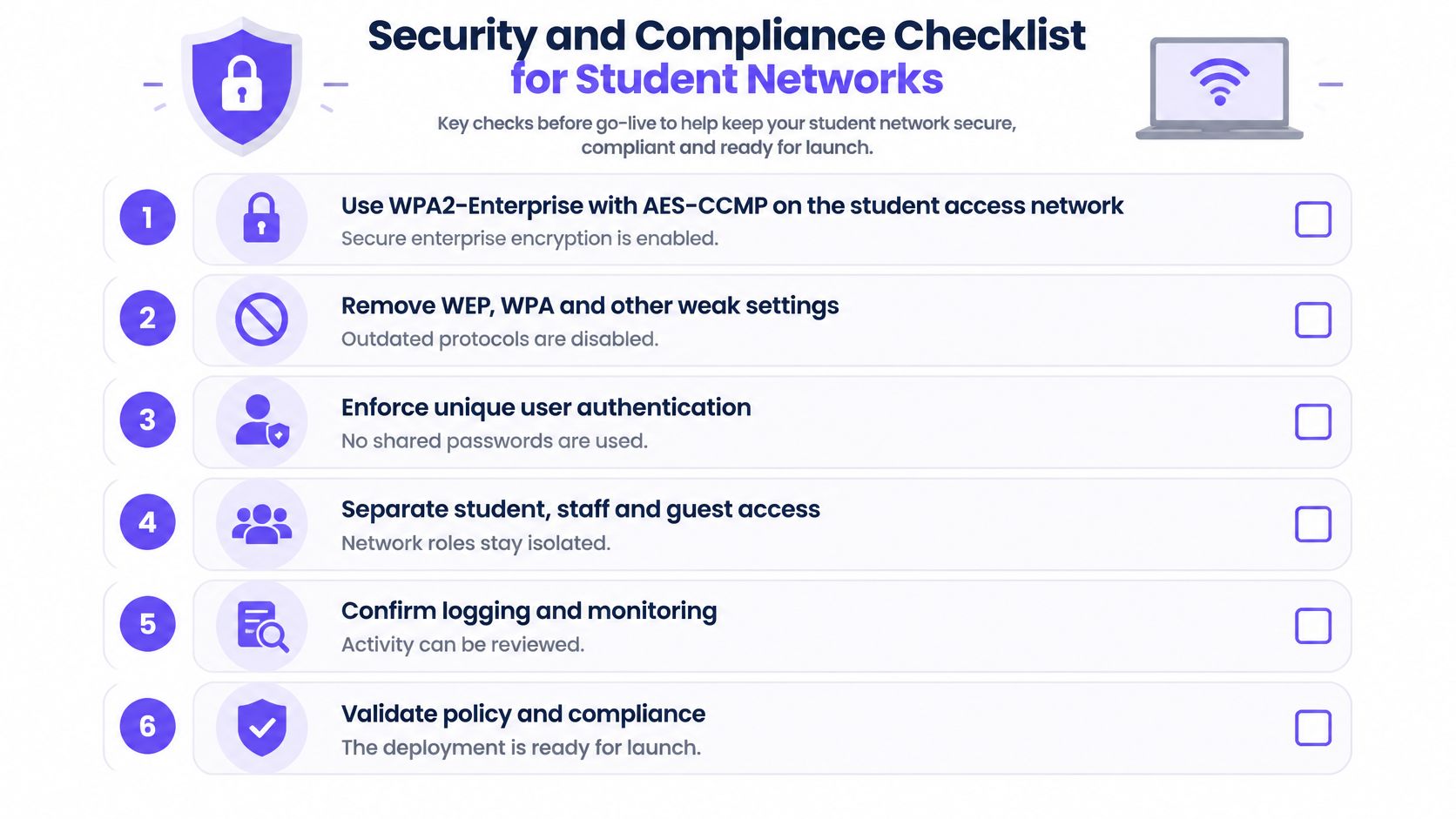
Enable the required enterprise encryption profile. For the relevant eduroam access service, verify the approved WPA2-Enterprise and AES-CCMP configuration on every controller and access-point group. Check the negotiated connection on a client as well as the administrative setting. This catches configuration drift between buildings.
Remove obsolete security modes. Disable WEP, original WPA and TKIP rather than leaving them available as a compatibility shortcut. Search for forgotten test and migration SSIDs. An obsolete secondary network can undermine an otherwise sound deployment.
Place the access service on a dedicated VLAN. Verify the VLAN mapping end to end through access points, switches and gateways. A correct wireless policy won't help if a trunk or controller mapping places users onto the wrong network.
Capture useful address-assignment records. Log assigned IPv4 addresses alongside the corresponding MAC addresses, and correlate them with authentication and session records. Check time synchronisation and access permissions. A MAC address alone isn't reliable proof of a person's identity, particularly where devices use private addresses.
Separate student, staff, guest and remediation traffic. Test the permitted routes from each role, including attempts to reach management interfaces. Don't accept VLAN names as evidence of isolation; inspect the firewall rules and try the prohibited connections.
Isolate residents and guests by default. Confirm that a resident can reach their own permitted devices without reaching another unit. Check wireless and wired paths, including shared printers and discovery services. A successful isolation test must cover the paths students will use.
Plan enterprise-security upgrades around client support. Introduce WPA3-Enterprise where the estate and applicable service requirements allow it, with a documented route for older equipment. Don't weaken the main service to accommodate an unidentified device. Put exceptions through a controlled compatibility process.
Document personal-data handling under UK GDPR. Agree the purpose of captured identifiers, authorised access, retention periods and deletion procedures with the institution's privacy lead. Don't assume that enabling analytics makes every available field necessary to collect.
Equipment retirement belongs in that last control. Beyond Surplus's guide to compliant device disposal for universities is useful context for planning an asset-disposal workflow. Validate the institution's own requirements, and remove credentials and management enrolment when devices leave service.
At handover, provide an active-credential inventory, a representative logging sample and a recorded cross-unit isolation test. Those artefacts let the client verify the deployment rather than rely on assurances.
| Metric | Question it answers | Action it triggers |
|---|---|---|
| Authentication success rate by building | Are students joining? | Low rate: check certificates and device profiles |
| Peak client count per access point | Is demand unevenly concentrated? | Sustained peak with contention: review band allocation or access-point placement |
| Reconnection rate after a dropped session | Do students recover without re-entering credentials? | Low rate: review roaming and session settings |
| Time to resolve failed sign-in | How long is a student offline? | Slow resolution: review the support route |
| Support contacts per 100 students | Is onboarding failing? | Term-start spike: review onboarding steps |
Define the denominator before setting a target. Authentication success might mean successful attempts, successful devices or people who eventually connect. Those measures answer different questions, and repeated automatic retries can distort an attempt-based rate.
Establish a pilot baseline, then compare like-for-like periods. An empty building during installation isn't a credible baseline for occupied halls.
A client-count peak doesn't prove saturation by itself. Pair it with airtime utilisation, latency, packet loss and retries before changing hardware. Use a WiFi analyser application for local investigation, then compare its observations with controller and authentication logs.
The dashboard should connect access problems with radio conditions rather than display them as unrelated totals.
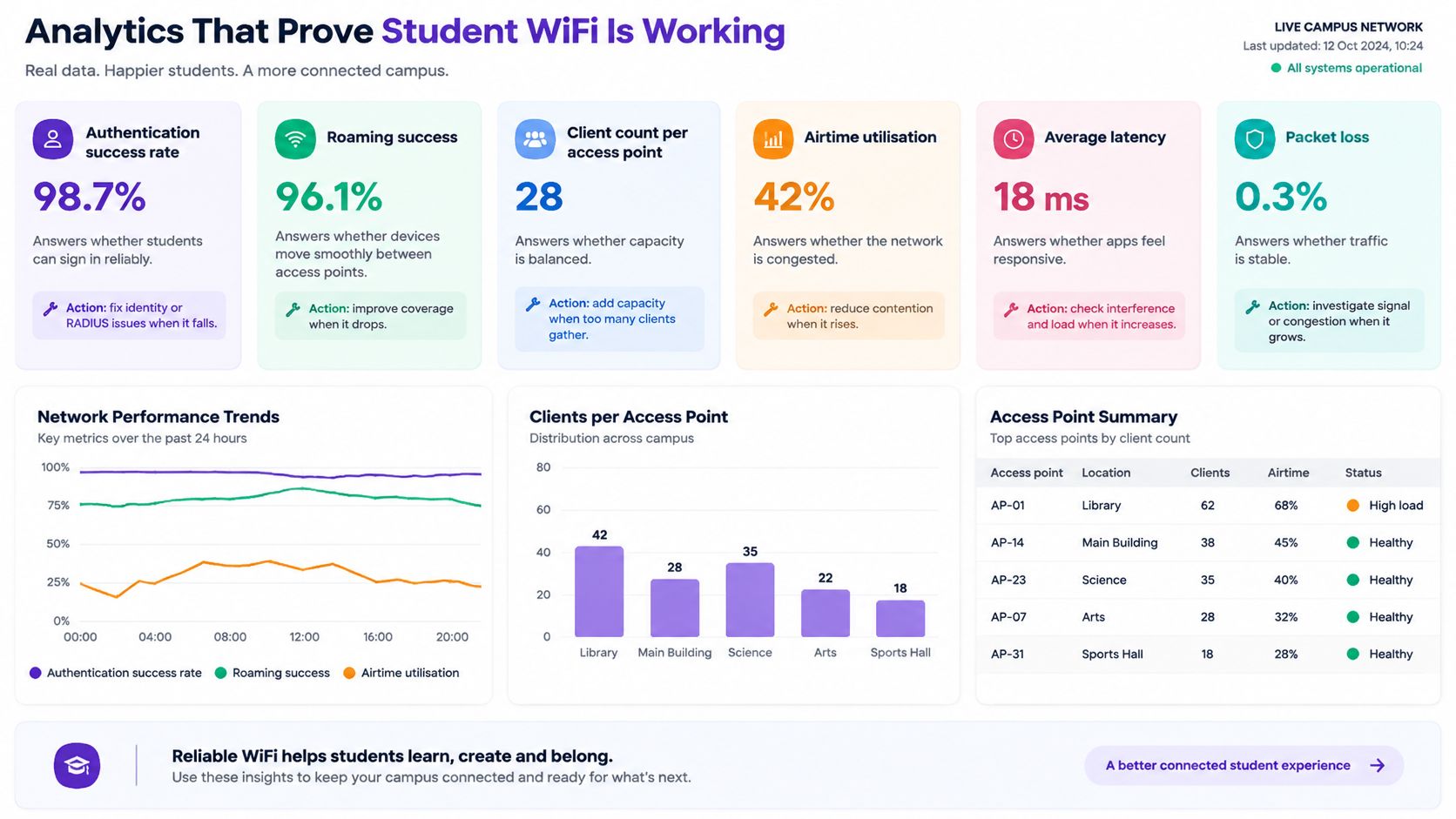
Newcastle's public WiFi has an 88% authentication rate, compared with a 71% industry average. Neither figure should become a campus acceptance threshold without matching definitions and user journeys. Enrolled students with pre-provisioned credentials face a different access process from casual public-network visitors.
Likewise, Paignton Zoo's WiFi analytics have produced 26k lines of active customer data, and its WiFi has been live since late 2016. Record volume demonstrates collection, not student service quality. A useful campus dashboard must show whether somebody can connect and recover, not merely how much information the platform stores.
Break results down by building and relevant resident group, including halls, off-campus users and international students where that classification is justified and appropriately governed. Keep unknown categories visible. Otherwise, missing identity information can hide the people having the greatest difficulty.
Operational test: If a dashboard change doesn't trigger an investigation, decision or service improvement, reconsider why you're collecting it.
Keep the monthly review focused on a small set of actionable measures:
Record the action, owner and completion evidence. A dashboard becomes useful when somebody acts on it.
Choose the delivery model before quoting the deployment. The commercial arrangement determines who answers an evening outage call, who changes access policy and who explains a failed offboarding process to the institution.
| Partner model | What the partner takes on | What must be agreed |
|---|---|---|
| Managed service | Ongoing network operation and service management | Identity integration, support coverage, escalation and reporting |
| White-label overlay | Customer relationship and branded service delivery | Hardware compatibility, configuration ownership and support hand-offs |
| Platform resale | Platform supply and agreed implementation services | Responsibility for integration, renewals, incident response and reporting |
A managed service suits partners that can own operational outcomes. Price the support obligation, including term-start demand and accommodation incidents outside teaching hours. A software licence doesn't fund an unpriced service desk.
A white-label overlay suits partners that want to retain the customer relationship while adding identity and policy capabilities to an existing estate. Document the boundary between the overlay, local switching, wireless controllers and upstream connectivity. Otherwise, an outage can turn into an argument about ownership.
Resale can work where the institution already has a capable operations team. Make the handover explicit: configuration documentation, administrator access, escalation routes and report definitions should be deliverables, not assumptions.
Our Staff WiFi works with Entra ID, Google and Okta. Confirm which identity provider the institution uses and which population it covers before quoting; staff-directory compatibility doesn't establish that student records or tenancy data are ready for integration. Our partners also receive reseller training, an enablement portal with guides and resources, and access to a dedicated support team.
Use a bounded pilot with an agreed exit decision:
Don't approve expansion because the demonstration looked smooth. Approve it because users can join, recover and leave under controlled conditions.
Which building will you pilot first, and who owns the leaver revocation list?
Purple offers identity-based Staff WiFi, Guest WiFi and private multi-tenant networking through a cloud-based overlay for existing infrastructure. Visit Purple to discuss a student-network pilot, bringing your identity provider, hardware inventory and the building you want to test first.
Join 80,000+ venues already running on Purple. No targets, no minimums, just bigger deals.