PMS in hotel: Modules, integrations and data flows
Learn what a PMS in hotel operations does, how its modules and integrations connect, UK GDPR safeguards and a practical rollout checklist.
Find out what security type is my WiFi network using, from WEP to WPA3, and how to check it on Windows, macOS, iPhone, Android or your router.
Who still knows your WiFi password, and what would you have to change if that person left tomorrow? That question matters more than many people realise when they ask, what security type is my WiFi? The label on your router tells you two things at once. It tells you how strongly traffic is encrypted, and it tells you whether access depends on one shared secret or on an identity you can remove for one person or device.
If you run a home or a small office, you don't need to memorise standards documents to make a sound decision. You need to read the label correctly, check where it's set, and understand what it won't protect. Start with the plain answer, then work through your own network in order.
If your router says WPA2 or WPA3, you're on a current standard. If it says WEP, WPA or Open, change it now.
That's the short verdict. The longer version matters because routers use similar words for different levels of protection, and a label such as WPA2/WPA3 mixed can hide a weaker setting underneath. In the UK, the security type is the encryption and authentication method configured on the router or access point. The UK Information Commissioner's Office WiFi security guidance recommends WPA2 because WEP and the original WPA have known security flaws, and it identifies WPA3 as a stronger newer option, although device support may be limited.
| Label shown | What it means | Verdict |
|---|---|---|
| Open or None | No encryption; traffic can be read by anyone nearby | Never use |
| WEP | Legacy encryption with known weaknesses | Replace now |
| WPA (TKIP) | Original WPA, with known flaws | Replace |
| WPA2-Personal (AES) | Shared passphrase on the current standard | Acceptable |
| WPA3-Personal (SAE) | Newer passphrase protection, stronger against guessing | Preferred where every device supports it |
| WPA2 or WPA3-Enterprise (802.1X) | Individual credentials or certificates per user or device | Preferred for organisations |
An Open network has no password and no encryption at the WiFi layer. Anyone in range can join, and traffic that isn't protected higher up, for example by HTTPS, can be read. WEP looks protected because it asks for a key, but its design is broken in ways that have been understood for years. WPA with TKIP was an interim fix for WEP and carries the same basic problem. It was never meant to be a long term answer.
WPA2-Personal with AES is the familiar home setting. It's acceptable for most households when the passphrase is long, unique and not reused elsewhere, and when the router firmware is current. WPA3-Personal with SAE improves how the passphrase is checked, so captured traffic is harder to use for offline guessing. It isn't automatically better if half your devices can't join it and you end up turning on a loose compatibility mode to cope.
Read every label as two separate decisions.
In Personal mode, one shared passphrase, often called a pre-shared key or PSK, opens the door for everyone. Your phone, laptop, television and a visitor's tablet all prove themselves with the same secret. That's simple, and for a household it's usually the right trade. The cost appears when the secret spreads. If a lodger moves out, a phone is lost, or a member of staff leaves a small business, the only clean fix is to change the passphrase and reconnect every device that should stay.
In Enterprise mode, 802.1X makes each user or device authenticate against a server with its own credentials or certificate. The router or access point asks a RADIUS server, in plain terms an authentication server, whether this identity is allowed. Remove that identity and that person or device loses access. Nobody else has to type a new password.
Home test: If joining asks only for a password, it's Personal. If it asks for a username, a server address or a certificate, it's Enterprise.
Most home routers offer only Personal, so don't worry if you can't find Enterprise settings in a consumer admin page. That's expected. What matters at home is the generation, the cipher, and the quality of the passphrase. Look for AES, sometimes shown as CCMP. Avoid TKIP, and avoid settings that offer WPA and WPA2 together for compatibility unless you have a specific old device you're planning to retire.
Uncertainty about this setting isn't new. A 2008 Kaspersky survey of UK homes reported that 57% of UK homes had wireless internet access, but only 35% of respondents had taken adequate steps to secure their wireless router. In that same survey, just 6% said they used WPA2 and 22% did not know which encryption setting their network used. Those figures describe that period, not today's routers, but the habit they reveal is still familiar. People check signal strength and speed. They rarely check the security label until a phone shows a warning.
For an organisation, that blind spot becomes an operational problem. A shared passphrase can't tell you which person used the network at a given time. It also can't be withdrawn from one leaver without disrupting everyone else. Enterprise mode solves that access control problem, which is why it's preferred where staff, contractors and visitors need separate accountability.
Before you change anything, write down exactly what your router shows today. Note the generation, the mode and the cipher if it's listed, for example WPA2-PSK, AES. You'll need that note when you compare settings across devices and bands, because a router can run one setting on the main network and a weaker one on a guest or legacy network.
Use the device in your hand for a first indication, then confirm the result on the router. Most phones don't show the security type directly, and a laptop shows the connection it negotiated, which isn't always the same as every option the router allows.
| Device or tool | Where to look | What you will see |
|---|---|---|
| Windows 10 or 11 | Command Prompt, run netsh wlan show interfaces | Authentication line, such as WPA2-Personal |
| macOS | Hold Option and click the WiFi icon in the menu bar | Security line, such as WPA2 Personal |
| iPhone or iPad | Settings does not reliably show the mode | Check the router admin page instead |
| Android | WiFi details usually omit the mode | Check the router admin page or use a WiFi analyser app |
| Router admin page | Gateway address on the router label, then the wireless security page | Mode such as WPA2-PSK with AES |
| WiFi analyser app | Scan on a laptop or phone | Security column for each nearby network |
On Windows, the command line is the clearest route because Settings wording changes between builds. Open Command Prompt, run netsh wlan show interfaces and read the Authentication line for the connected network. You'll see wording such as WPA2-Personal or WPA3-Personal. If you manage several saved networks, check you're connected to the right SSID first. A laptop can sit on a guest network while you think you're testing the staff network.
On macOS, hold the Option key and click the WiFi icon in the menu bar. The expanded view includes a Security line for the current connection, along with channel and signal details. It's quick and reliable for the network you're on. It won't tell you whether the router also allows an older method for other devices.
Phones are less helpful, and that's a design choice rather than a fault. An iPhone or iPad may warn about weak security, but Settings doesn't reliably state the exact mode. Android varies by manufacturer. Some models show WPA2 or WPA3 in network details, others show only that the network is secured. Don't guess from a padlock icon. A padlock can cover anything from WEP to WPA3.
To determine your WiFi security type properly, log in to the router's administration interface and inspect the wireless security or encryption setting. Checking only the network name or password is insufficient, a point made in the Northern Ireland Cyber Security Centre home network guidance, which also advises that a network should never be configured as "Open".
A WiFi analyser app helps when you have extenders, mesh nodes or several similarly named networks. It lists nearby SSIDs with a security column, so you can spot an old extender still advertising a weaker mode. Use a reputable analyser that only asks for permissions it needs. Avoid any tool that promises to reveal passwords.
A router still using its default admin password needs that fixed before you debate WPA2 against WPA3. Anyone who can administer the router can undo your security setting.
Write the result down before changing anything, including the SSID, band and firmware version if shown. If Windows and the router disagree, trust the router for what's configured and trust the laptop for what that device negotiated. Both facts are useful. Together they tell you whether a mixed mode is letting an older device connect at a lower level than you intended.
A WPA2 label is a good start. It isn't a guarantee.
Readers often treat the security type as a pass or fail badge. That's understandable, because phones and laptops present it as one short line. In practice, the label describes one layer. Firmware faults, weak passphrases and compatibility settings can all sit underneath a reassuring name. If you're unsure how the passphrase itself fits into that picture, our guide to what a WPA2 password does and does not protect separates the shared secret from the encryption around it.
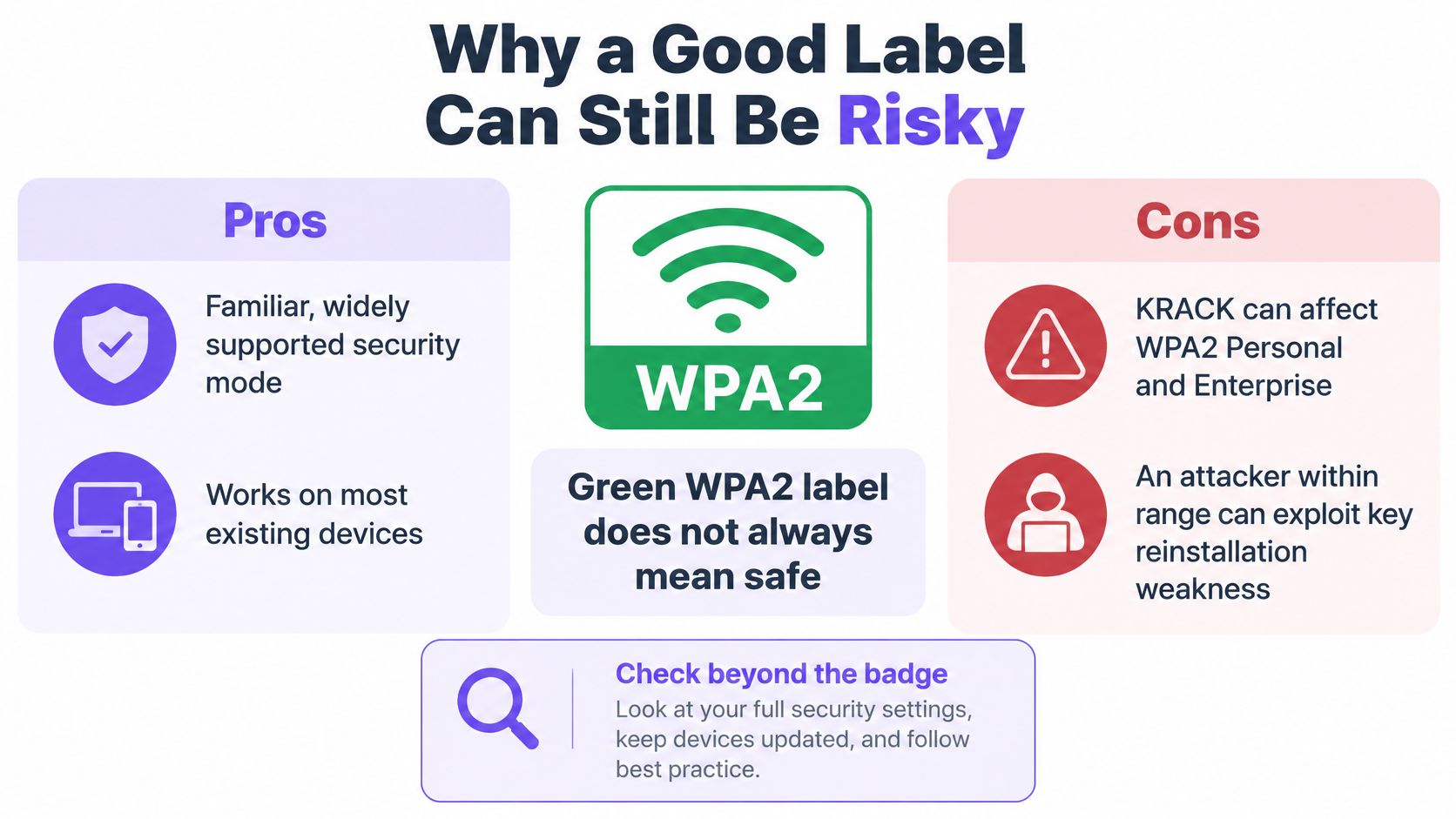
The clearest example is KRACK, short for key reinstallation attack. The NCSC guidance on the KRACK vulnerability states that it affected both WPA2-Personal and WPA2-Enterprise, potentially allowing an attacker within wireless range to read encrypted traffic or inject traffic under particular conditions. The same guidance is clear that WPA2 remained more secure than WEP or WPA. A flaw in a strong protocol doesn't make an old broken protocol a sensible fallback.
The weakness sat in how keys could be reinstalled during the connection handshake, the short exchange that sets up encryption when a device joins or roams. An attacker had to be within wireless range and meet particular conditions. That limits the scenario, but it doesn't remove it for a flat, office or shop where strangers can sit nearby.
| Area | Covered by a sound WPA2-AES setting | Still exposed if you stop there |
|---|---|---|
| Wireless traffic | Encrypted between device and access point | Weak passphrase can still be guessed |
| Joining the network | Device must know the shared secret | Everyone uses the same secret, so no individual revocation |
| Old compatibility modes | AES avoids obsolete TKIP | Mixed WPA/WPA2 settings can re-enable weaker methods |
| Device flaws | Protocol design is stronger than WEP and WPA | Unpatched firmware can undermine the implementation |
| Data beyond WiFi | Nothing once traffic leaves the access point | Applications still need HTTPS or a VPN |
The last row is the one readers miss most often. WiFi encryption protects the hop through the air to your router. It doesn't by itself protect the whole journey to a bank, email service or work system. HTTPS protects traffic between your browser or app and the service at the other end. A properly configured encrypted VPN can protect traffic across an untrusted network. Use those layers for sensitive work even on a network you own.
Say a small accountancy office has WPA2-AES on every access point, but the passphrase is the business name plus a year and it's written on a whiteboard for visitors. The label looks fine. The access control doesn't. Anyone who has seen that board can return, join from the car park, and appear as a trusted device. The fix isn't a new protocol name. It's a long unique passphrase, a separate guest network, and a decision about whether staff need individual identities.
Treat the label as the first line of an audit, not the conclusion. Check the cipher, the passphrase, the firmware and who else knows the secret.
Match your network to a case first. The strongest setting your oldest essential device can't join will either break that device or push you into a mixed mode you didn't plan.
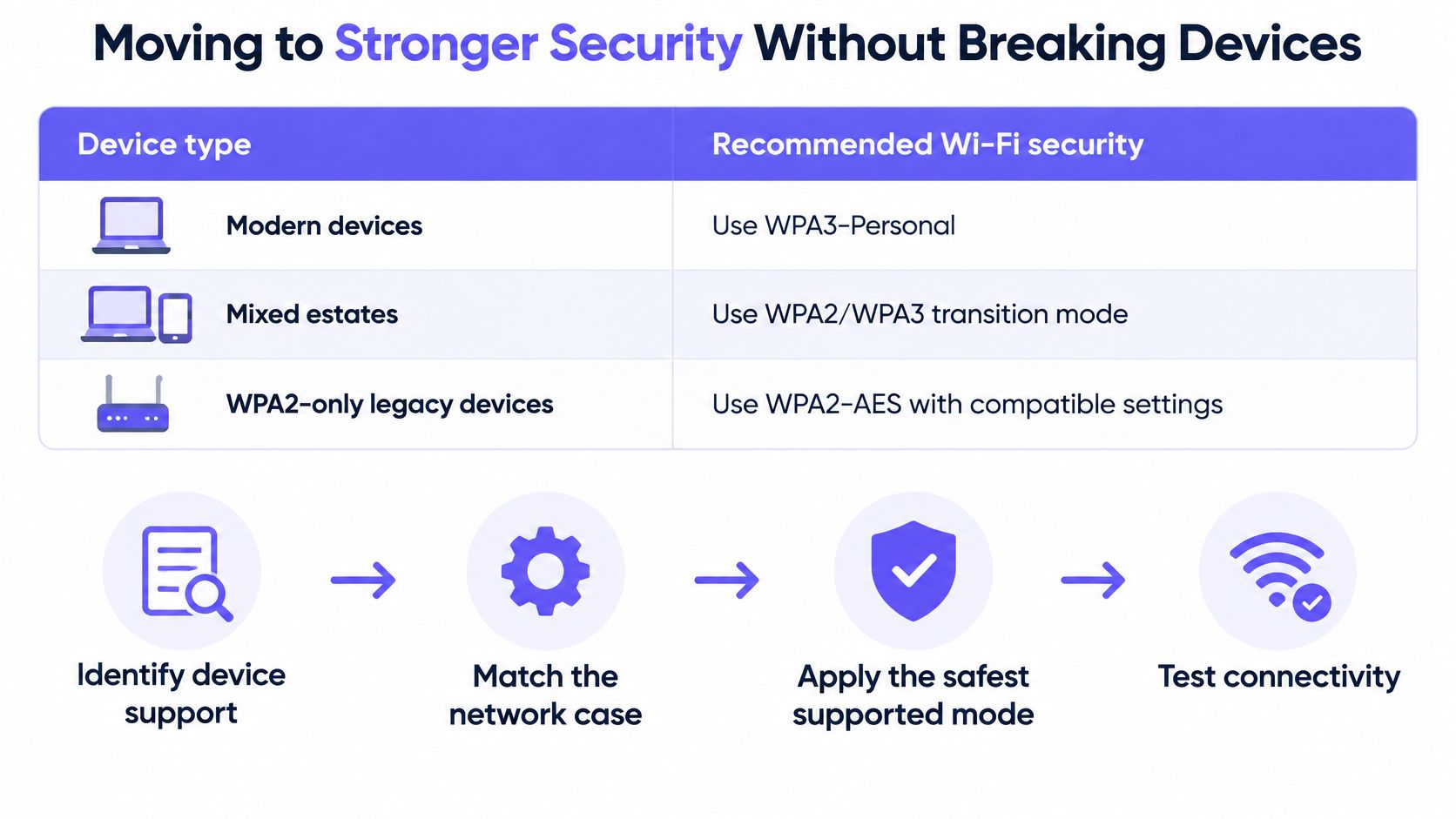
| Network case | Recommended setting | Trade-off |
|---|---|---|
| Modern devices only | WPA3-Personal (SAE) | Confirm every device supports it first |
| Mixed old and new devices | WPA2/WPA3 transition mode | Older devices connect, but a downgrade path remains |
| Legacy devices that support only WPA2 | WPA2-Personal with AES only | Remove TKIP; no WPA3 benefit |
| Printers, cameras or sensors limited to WEP | Separate network on WPA2, or replace the device | Keep them off the main network |
| Organisation with a directory or identity system | WPA2 or WPA3-Enterprise with 802.1X | Needs an authentication server, certificates and client set-up |
WPA2/WPA3 transition mode deserves care. It lets newer devices use WPA3 while older ones use WPA2 on the same SSID, which is convenient during a change. It also leaves a downgrade path, because the network still accepts the older method. Use it as a bridge with an end date, not as a permanent compromise you forget about.
For organisations, the choice isn't only about encryption strength. The UK Cyber Security Breaches Survey 2025 found that 43% of businesses experienced a cyber breach or attack in the previous 12 months, while 93% reported separating staff and visitor WiFi as a technical control. Separation helps, but it doesn't identify which employee, contractor or visitor used a shared password. If you need that accountability, plan for directory-backed authentication and consider how certificate-based WiFi via MDM removes manual certificate handling from each device.
Then make the router change in this order. Sign in to the admin page at the gateway address using the admin password, not the WiFi password. Open the wireless security page and select the mode. Enter a long unique passphrase for Personal, or the RADIUS server details for Enterprise. Save, wait for the access point to restart its wireless service, then reconnect each device and forget the old network profile where a device keeps trying stale settings.
Test before you commit, because WPA3 support is still limited for some devices. Printers and older Internet of Things devices are the usual problem, not recent phones. If a device supports only WEP, don't weaken the main network for it. Replace it, wire it if you can, or isolate it on a separate network that can't reach your laptops and files. A cheap old camera shouldn't decide the security level for everything else in the building.
For a managed estate, a one-off fix isn't enough. You need a repeatable audit that produces the same baseline at every site and evidence you can show a client without reconstructing the work from memory. Teams formalising that baseline can align it with our wider guidance on securing WiFi across client sites, but the checklist below stands on its own for a site visit.
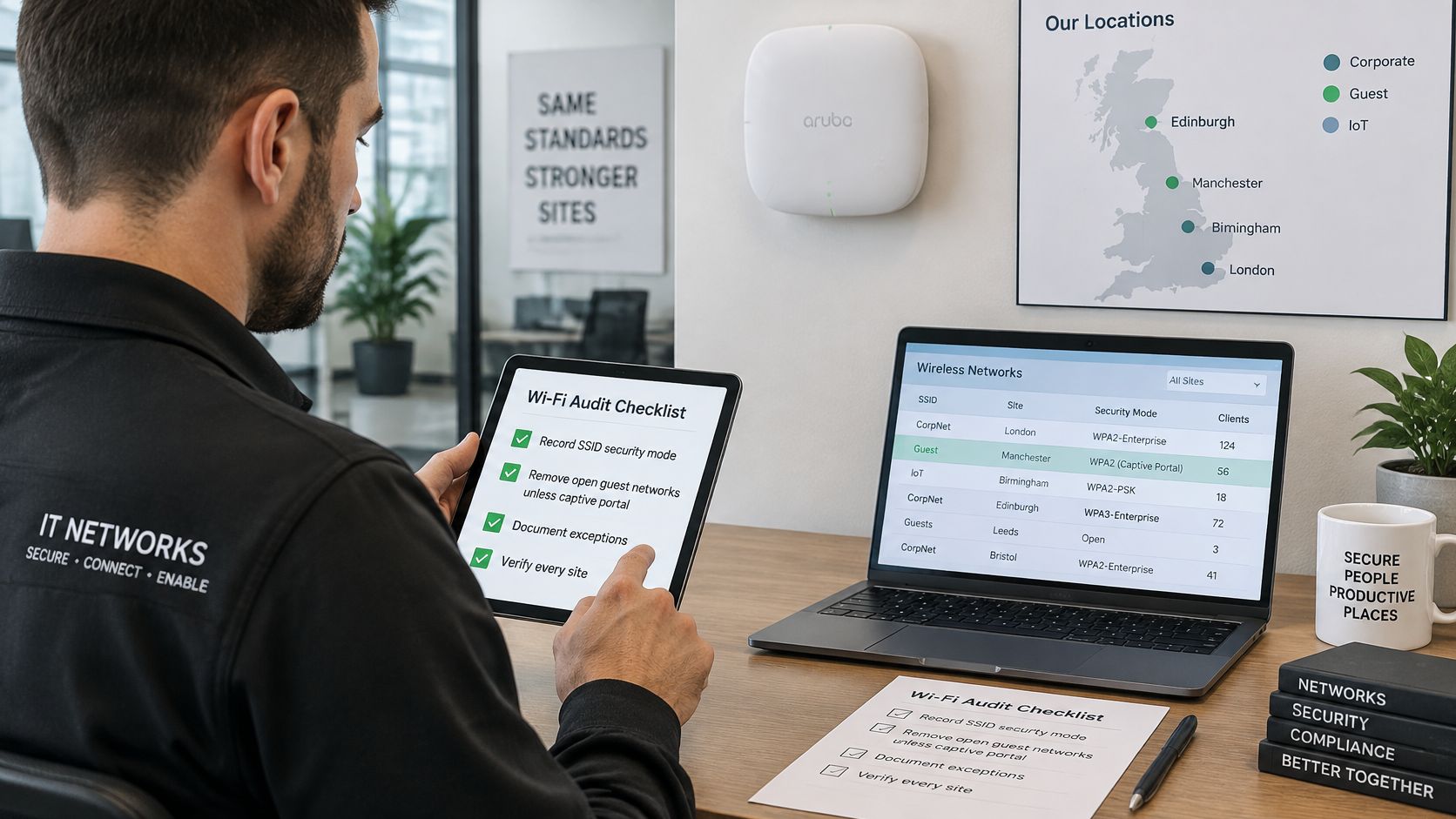
Fix Open and WEP first because they're the most exposed. Next remove WPA and TKIP, then simplify mixed modes. Move to WPA3 or Enterprise where the estate supports it. That order gives a client visible risk reduction early, instead of a long project that delivers nothing until the final access point changes.
Evidence rule: If the audit can't be rechecked in ten minutes, it isn't an audit yet. It's a memory.
Keep a dated screenshot of each security setting, the firmware version, the SSID list and the name of the person who approved any change. Add a short note for exceptions. For example, a warehouse scanner estate might stay on WPA2-AES because the handhelds don't support WPA3, with a refresh date attached. That note turns a weakness into a managed decision.
Review staff and guest networks quarterly. Review again after any device refresh, site move, controller change or significant staff change. A new access point installed in a hurry is a common source of drift. So is a temporary SSID created for an event and never removed.
The audit proves a simple point to a client. Each site meets a stated baseline, exceptions are known and dated, and nobody has to ask what security type is my WiFi across twenty locations and get twenty different guesses.
Pick the path that matches who uses the network, not the path with the newest acronym.
Check the label today. If it says WEP, WPA or Open, use the matching case in the table in the previous section and move to WPA3-Personal if every device supports it, or WPA2-Personal with AES only if they don't. Set a long unique passphrase you don't use anywhere else. Update the router firmware, update your devices, replace the default admin password, and turn off any guest network you don't recognise.
Keep it simple enough that you'll maintain it. A household doesn't need a RADIUS server to be sensibly protected. It needs a current protocol, a passphrase that isn't guessable from an address or pet name, and devices that still receive updates. If a old printer blocks the change, wire it, isolate it or replace it. Don't let one peripheral set the ceiling for the whole house.
Ask a harder question. When one person leaves, can you remove only their access? If the answer is no because everyone shares one passphrase, you have an access control problem, even if the encryption generation is current.
A directory-backed WPA2 or WPA3-Enterprise deployment run by your own IT team is one route, using 802.1X with individual credentials or certificates. Another option is Purple's Staff WiFi, which uses WPA3-Enterprise with automatic device provisioning and revocation tied to the customer's identity provider, through the Purple app, with no shared passwords. It works with Entra ID, Google and Okta. Weigh either route against your identity system, device management and support capacity. The right choice is the one your team can join, revoke and audit without workarounds.
A leaver's access should end when their account ends. It shouldn't wait until somebody has time to change a password on every device in the building.
Planning helps you avoid treating this as a panic change after a phone warning or a failed audit. If you're mapping budgets, refresh cycles and site changes together, 2026 network planning for IT managers from Reworx Recycling is a useful resource to read alongside your own estate list, so wireless security lands in the same plan as hardware replacement rather than as an afterthought.
Confirm your setting today, write down the exact label and firmware version, then set a date to review it. That date matters. Devices change, people leave, temporary networks linger and routers get replaced with defaults restored. A security type is only trustworthy while someone keeps checking that it's still the one in use.
Ready to remove shared staff passwords without rebuilding the network you already own? Purple helps you move staff access to WPA3-Enterprise tied to your identity provider, so joining and revocation follow the person and device, not a passphrase on a wall. Visit Purple to plan your next WiFi security step and see how it fits the sites you manage.
Join 80,000+ venues already running on Purple. No targets, no minimums, just bigger deals.