WPS in WiFi: What It Is and Why to Disable It
WPS in WiFi is a one-press pairing shortcut with a crackable PIN. Learn how the attack works, why MSPs disable it, and which access controls replace it.
Learn how to sign into eduroam on Windows, macOS, iOS, Android and Linux, plus username formats, certificate checks and fixes for common errors.
You've arrived at a lecture theatre or research campus, opened your laptop and selected eduroam. Instead of getting online, you're staring at another password prompt. Your university password worked this morning, so why won't the WiFi accept it?
Knowing how to sign into eduroam means checking more than the password. Your home account, your device's saved configuration and the network you're visiting all play different roles. The useful question is which part needs attention, so you don't keep reinstalling a profile when your account or the venue's network is the actual problem.
You don't need a separate eduroam account. You normally use the network identity your university, college or research organisation has already issued. You don't register again just because you're visiting another participating campus.
Before changing any WiFi settings, check your eligibility, your account and your username format. A correct password won't help if your organisation doesn't participate or your device sends the wrong institutional identity.

Your home organisation is the institution that issued your login, not necessarily the campus where you're standing. Its IT guidance should confirm whether it offers eduroam and which students, staff or affiliates can use it.
The service connects a substantial education and research community: Jisc's eduroam service information reports 711 registered participating organisations on 20 May 2025. That participation enables roaming, but it doesn't mean every visitor automatically has an eligible account.
Check the following before you download anything:
Try signing into an official home service, such as your university email or library portal. If that fails too, resolve the account problem first. If it succeeds, you've established that the password works for that service, although your eduroam entitlement and username format still need to be correct.
If your home organisation isn't an eduroam member, ask the venue about its visitor or guest network. A campus guest account isn't a substitute identity that you can enter into eduroam.
An eduroam identity commonly looks like jane.smith@university.ac.uk. The part after the at sign is the institution's realm, which directs the authentication request to the appropriate home organisation.
That identity may resemble an email address without being your usual mailbox address. Some institutions use a student number or staff identifier before the realm. Follow the format on your institution's eduroam page, including any distinction between a public email alias and a network username.
Before you begin: Write down your complete eduroam username, but don't write your password beside it.
Say your email application signs you in automatically. That doesn't prove you remember your current password, because the application may still have a valid session. Use an official sign-in page to check rather than repeatedly testing guesses against the WiFi network.
Device suitability matters too. A laptop or phone that supports enterprise WiFi is a different setup task from a television or games console. For broader accommodation and campus connectivity questions, our guide to WiFi for students provides useful context.
Before proceeding, have your exact username, a confirmed working home login and the name of the device you're setting up. Also arrange an existing internet connection, such as mobile data or an approved guest network, if you need to download the installer.
Use the installer your institution recommends, not a generic WiFi profile built from guesses. The right route supplies the authentication settings your device needs, including how it should recognise the trusted authentication server.
Start on your home institution's official IT website. It may direct you to geteduroam, the eduroam Configuration Assistant Tool, usually called CAT, or device-specific instructions.
| Device | Recommended route | Profile or file installed | Credentials needed |
|---|---|---|---|
| Windows | geteduroam or the institution's recommended installer | Institution-specific network configuration | Home username and password |
| macOS | geteduroam where supported, or institution CAT configuration | Configuration profile or installer-managed network configuration | Home username and password, plus admin approval when requested |
| iOS and iPadOS | geteduroam app or institution CAT profile | Configuration profile | Home username and password |
| Android | geteduroam app | Network profile created by the app | Home username and password |
| Linux | Institution documentation; manual enterprise WiFi setup if no installer exists | Enterprise WiFi profile with a trusted CA certificate | Username, password and the inner authentication method the institution specifies |
geteduroam guides you through selecting an institution and adding its configuration. It's a suitable starting point for supported devices when your institution recommends it, but availability alone doesn't mean you should ignore your IT team's instructions.
CAT provides institution-specific configuration for supported operating systems. It isn't a different name for geteduroam, and the routes aren't divided neatly into institutions that use one or the other. Use whichever route your home organisation publishes for your device.
A manually configured connection requires more decisions. You may need an authentication method, an inner method, a trusted certificate authority and an expected server identity. Copying another university's settings can produce a connection that fails or checks the wrong server.
A university-managed laptop may already contain the correct configuration. Installing another profile can leave you with competing settings, so check whether eduroam is already managed before adding anything.
The installed configuration tells the device which server to trust, not just which network name to select. That's why choosing the correct institution matters even when several organisations share a campus or have similar names.
A visitor from another university should select their own university in the installer. Selecting the institution being visited won't turn the visitor's existing credentials into a local account.
You also don't need to select a different home institution whenever you travel. Keep the configuration associated with the organisation that issued your identity unless your affiliation changes or your IT team tells you to replace it.
Once you've identified the appropriate row, obtain the recommended tool through your institution's instructions. Don't download a random certificate or profile offered by an unfamiliar website because its filename contains eduroam.
A browser page asking for your eduroam password is a warning sign. Eduroam normally uses certificate-backed enterprise WiFi authentication, rather than a captive portal where you type credentials after joining an open network.
A certificate check helps your device establish that it's communicating with the expected authentication service. Treating every trust prompt as a routine obstacle removes that protection.
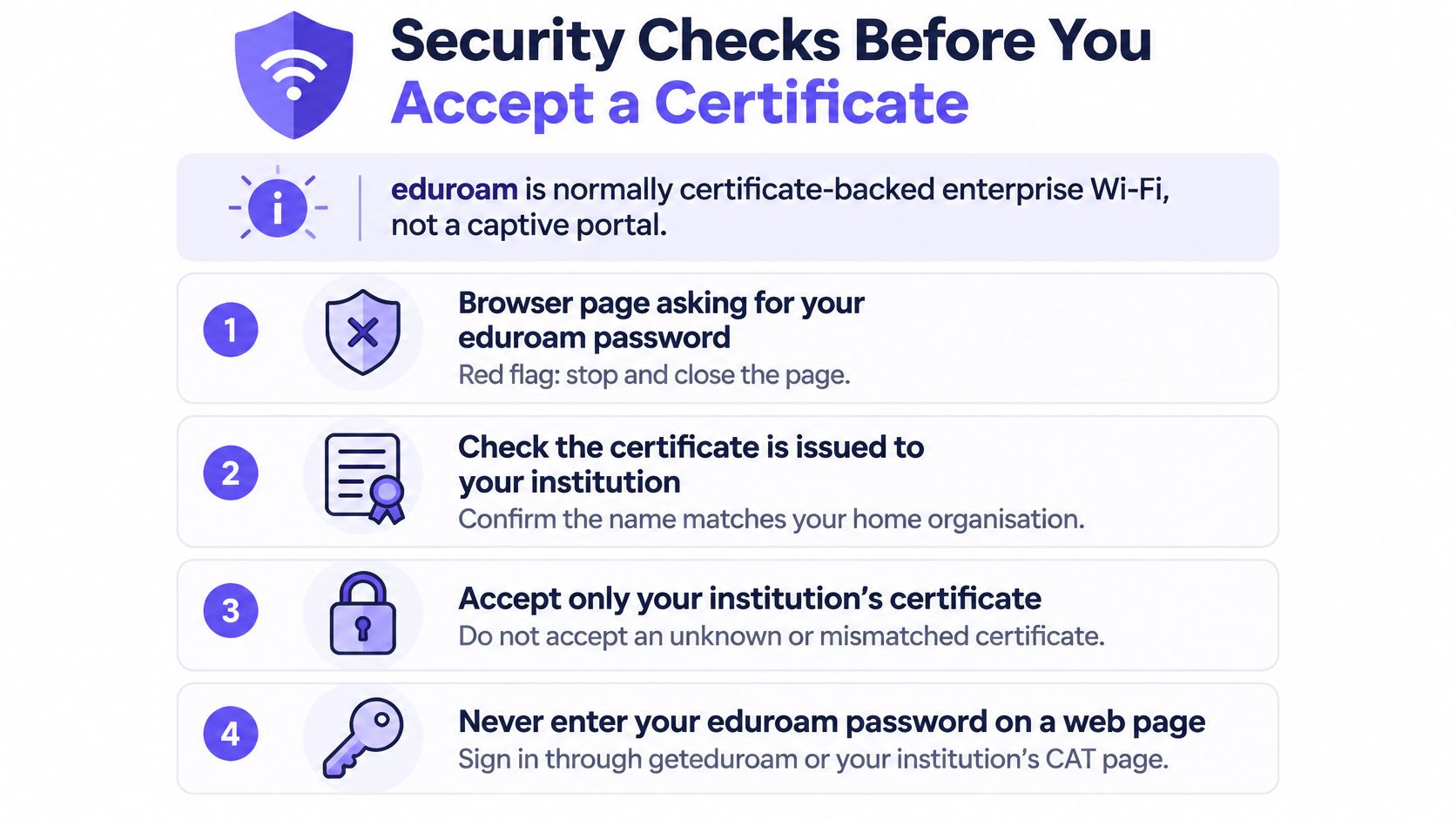
An access point can advertise the name eduroam without being trustworthy. A rogue, lookalike access point is sometimes called an evil twin. A certificate mismatch can also result from a legitimate configuration error, but neither situation calls for blindly accepting the warning.
Use your institution's published configuration as the reference. Don't assume a certificate is correct because the displayed organisation sounds academic or the campus location seems legitimate.
A certificate's issuer and the organisation operating the authentication server aren't necessarily the same. For example, a recognised certificate authority may issue the server certificate. The important check is whether the server identity and trust settings match your institution's documented configuration.
A familiar network name isn't proof that the device asking for your password is legitimate.
Our explanation of access point security gives additional context on protecting wireless access. For an individual user, the immediate safeguard is simpler: don't override a failed identity check.
On a shared or borrowed computer, avoid storing your institutional password where another person can reuse it. If the official setup requires saved credentials, consider whether using that machine is appropriate at all.
Follow the owner's rules for lab equipment. On a personal borrowed device where installation is permitted, remove your personal eduroam configuration and saved credentials when you finish. Don't delete centrally managed profiles or other users' settings.
An installer may legitimately take you through an institution's web-based onboarding instructions. That's different from an unexpected portal appearing after you join a network and demanding your eduroam password.
If you can't verify a prompt, cancel the connection. Record the warning without exposing your password, then report the location to the venue's IT team and ask your home help desk to confirm the expected server details.
The shared routine is to select your home institution, install its configuration and authenticate with its identity. Jisc's eduroam user guidance directs users of current Windows, iOS and Android devices towards geteduroam, with the home organisation checking credentials even when the connection starts at another participating site.
Do the initial setup somewhere you have reliable internet access. Keep your institution's device instructions open, because menu labels and installation permissions can differ between operating-system versions.
Some installers request credentials at a different point in that sequence. Follow the official tool's prompts rather than opening a separate manual setup screen halfway through.
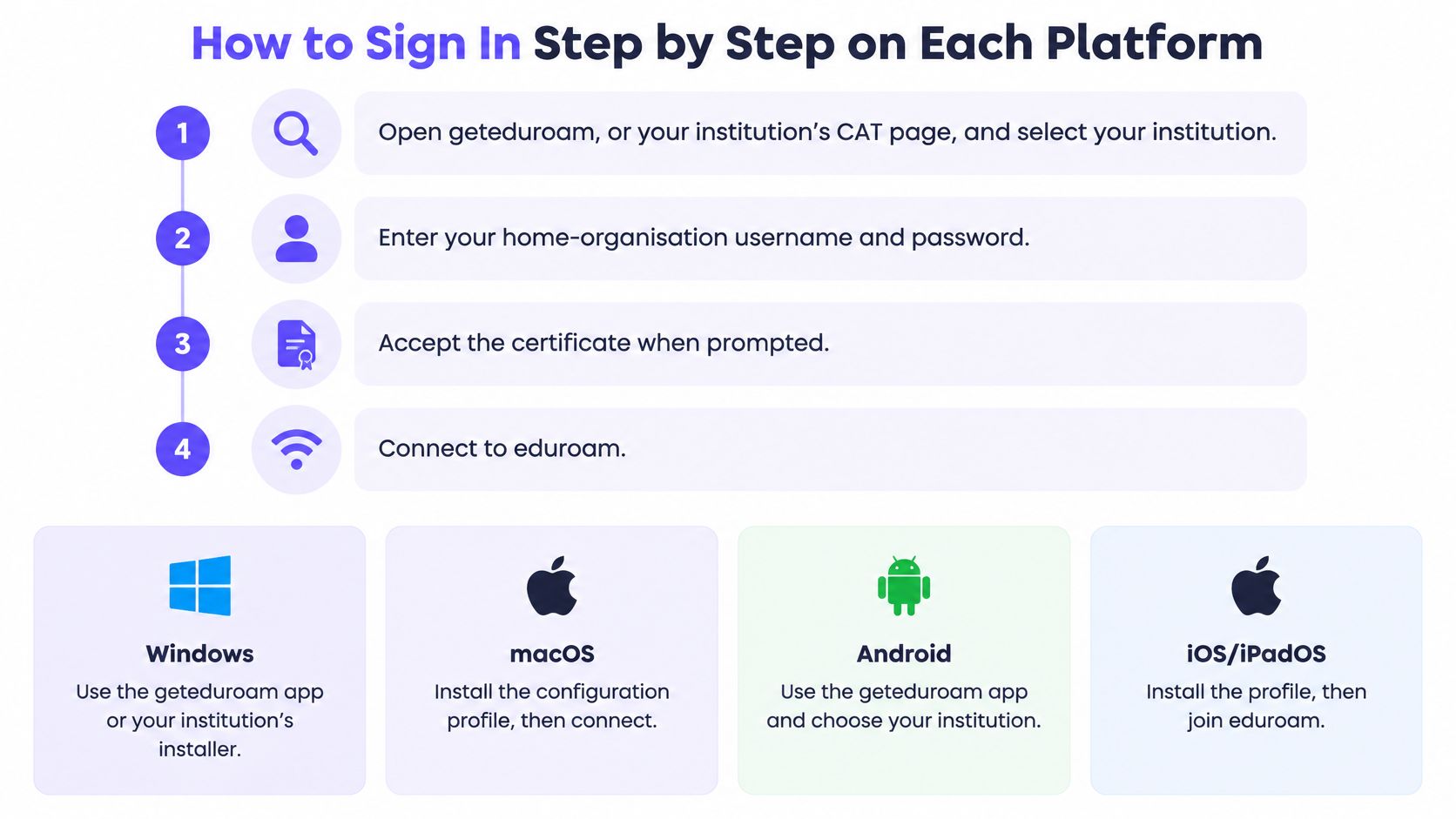
Run geteduroam or the institution's Windows installer, select your organisation and complete its authentication prompts. If Windows asks you to confirm a server certificate, compare the identity with your institution's instructions before continuing.
Open Settings > Network & internet > WiFi > Manage known networks to check that eduroam has been saved. Then select it from the available network list if it hasn't connected.
A frequent source of confusion is entering only the short username that works on a campus computer. Use the complete eduroam identity, including the required realm. Don't substitute a Windows PIN for your institutional password.
Use the macOS route your institution recommends. If it downloads a configuration profile, open System Settings and look for Profiles or Device Management. The location changes between macOS releases, so use the Settings search field if necessary.
Review the profile, approve installation and enter an administrator password when macOS requests permission. That local approval password authorises a change to the Mac; it isn't automatically the password used to authenticate to eduroam.
If the institution uses an app-based route, complete the app's installation process instead. A downloaded profile that you haven't approved won't configure the connection merely because it's in your Downloads folder.
Follow geteduroam's prompts, or download the official CAT profile if your institution specifies that route. For a downloaded profile, open Settings > General > VPN & Device Management, select the profile and choose Install.
Enter the device passcode when requested. Your iPhone or iPad uses that passcode to authorise installation, while the institutional username and password establish network access.
Return to Settings > WiFi and check eduroam. If you can see a downloaded profile waiting for installation, finish that approval process before trying the network again.
Open geteduroam, choose your institution and complete the sign-in prompts. Approve the app's request to add the WiFi configuration, then check the eduroam connection in Android's WiFi settings.
Menu names differ between manufacturers. Look under Settings > Network & internet > Internet or Settings > Connections > WiFi.
If your institution explicitly requires manual setup, enter its documented identity, authentication method, trusted CA certificate and server validation settings. Don't choose an option that disables certificate validation just to make a failed connection proceed.
Use an institution-provided Linux installer when available. For a documented manual setup in NetworkManager, edit or add the eduroam connection and select the enterprise WiFi security option.
Enter the institution's specified EAP method, inner authentication method, username and password. Select the required CA certificate and configure the expected authentication server identity as documented.
The main mistake is borrowing authentication values from another institution's help page. Those values aren't universal, even though the wireless network has the same name.
Check that eduroam shows as connected, then load a known website. On a phone, briefly disable mobile data if you need to establish whether the page is loading over WiFi rather than the cellular connection.
For organisation-managed fleets, certificate-based WiFi via MDM explains the centrally managed approach. Don't replace an IT-deployed configuration with a personal installation unless your support team asks you to.
If the device won't connect, note the exact symptom before changing anything. A rejected login and a connected device with no internet need different checks.
A repeating password prompt doesn't prove that your password is wrong. The device may be sending a cached password, using a stale profile or applying duplicate settings. Equally, reinstalling the profile won't restore access to a suspended account.
Start by recording what the device does. Does it reject the login, remain stuck connecting, or report a connection while websites fail?
| Symptom | Likely cause | Fix |
|---|---|---|
| Password prompt keeps repeating | Stale or duplicate profile, or password changed at home | Forget eduroam, remove the obsolete profile and reinstall the current official configuration |
| Connected but no internet | Wrong device clock, visited-network policy or local restriction | Correct the clock, test a known site and compare with another participating location |
| Password works on home services but fails on eduroam | Cached credentials, incorrect identity format or a network-account issue | Update saved credentials on every device, then verify the required identity and entitlement |
| Network listed but will not connect | Authentication hasn't completed, or the connection is failing earlier | Check account status and the realm in the username, then inspect the error |
| Account rejected at every eduroam site | Account suspension, expired institutional status or a home authentication problem | Contact the home institution's IT help desk |
Forgetting the network and removing a profile aren't always the same operation. Forgetting eduroam usually removes a saved wireless connection. An installed configuration profile or management policy may remain and recreate it.
Use this recovery sequence on a personally managed device:
After an institutional password change, check your other phones, tablets and laptops too. A device retrying an old saved password can contribute to account lockouts even while you're correcting the laptop in front of you.
Useful distinction: If changing the profile doesn't change the symptom, stop treating every failure as a profile fault.
Don't choose a different certificate by hand as a workaround. Replace an incorrect configuration with the official one, or ask IT to confirm what should be installed.
Seeing eduroam in the network list only establishes that your device can detect an access point. It doesn't establish that your home institution has accepted your credentials.
Conversely, if the device reports a connection but a known website won't load, don't immediately reset the password. Check the clock and signal, then compare the result at another participating location when practical. A problem confined to a venue points towards its local network, policy or roaming path, although support staff may need logs to confirm that.
A password that works on email doesn't conclusively establish that the home side is healthy or faulty. Eduroam may require a different username format or network entitlement, and a visited-network problem can still prevent authentication traffic from reaching home.
If you're travelling and your fallback connection also fails, Jasumo's Japan eSIM troubleshooting guide is relevant to diagnosing a separate Japan eSIM problem. It won't repair eduroam, but it can help you restore another route to your institution's support service.
There's no universal recovery time to promise. Local configuration changes can be tested immediately; account reactivations, entitlement checks and network faults need the responsible team to investigate.
Your home institution controls your identity; the visited campus controls its local network. The venue can investigate its access points and connectivity, but it can't reset another university's password. Your home help desk can check your account and authentication service, but it can't directly repair a visited campus outage.
Use the pattern of failure to choose where to start. Treat that pattern as evidence rather than a final diagnosis, because roaming problems can involve both teams.
| Failure | Who to contact | Why |
|---|---|---|
| Account locked, suspended or password rejected everywhere | Home institution IT help desk | Only the home organisation can administer your institutional identity |
| Fails at a visited campus, works at home | Visited campus network team | Its staff can investigate venue-side policy, outage or roaming issues |
| Certificate warning at a specific site | Visited campus, and home help desk if unsure | A rogue access point or configuration error needs checking against the expected home settings |
| Fails everywhere after reinstalling the official profile | Home institution IT help desk | Your identity, entitlement or authentication-server settings need checking |
A working connection at home is useful evidence when you're visiting elsewhere. Tell the venue whether that test was recent and whether you've changed your password or device configuration since then.
If your institution has ended your network entitlement, a new profile won't restore it. Ask the home help desk to confirm your status rather than asking the visited campus to override the rejection.
A message saying that WiFi doesn't work leaves support staff guessing. Provide enough detail to distinguish the device, account and venue without disclosing secrets.
For a certificate warning, include the displayed server identity if you can record it safely without accepting the connection. That gives your home team something concrete to compare with its expected configuration.
Send the error you received, not just your interpretation of it.
If the fault occurs only at the visited campus, begin with that campus's network team and keep your home help desk available for authentication checks. If it follows your identity across locations, start at home. You generally shouldn't need to approach the national network operator directly.
Before your next trip, test eduroam on every device you'll take. Save your home help desk's contact details somewhere available offline, keep the approved configuration installed and confirm your home login still works. That preparation is more useful than collecting replacement profiles after you arrive.
Purple offers identity-based Staff WiFi, Guest WiFi and Multi-tenant WiFi for partners supporting workplaces, visitor venues and accommodation. If you're an MSP, reseller or systems integrator helping customers move beyond shared passwords and fragmented onboarding, visit Purple to explore the partner programme and the right access approach for each environment.
Join 80,000+ venues already running on Purple. No targets, no minimums, just bigger deals.