How to sign into eduroam: Step-by-Step for every device
Learn how to sign into eduroam on Windows, macOS, iOS, Android and Linux, plus username formats, certificate checks and fixes for common errors.
WPS in WiFi is a one-press pairing shortcut with a crackable PIN. Learn how the attack works, why MSPs disable it, and which access controls replace it.
WPS in WiFi is a push-button or PIN pairing shortcut that transfers the network passphrase without anyone typing it, and you should disable it on every staff, guest and multi-tenant network. Make that an onboarding hardening step alongside WPA2 or WPA3 encryption, not a replacement for encryption.
The popular advice to use a stronger WiFi password misses the problem. A carefully chosen passphrase doesn't remove an alternative enrolment route that the access point still accepts. For an MSP, the useful question isn't whether WPS is insecure. It's which method is enabled, who can activate it, and how you'll prove you've removed it.
WiFi Protected Setup, usually shortened to WPS, solves a practical problem: connecting devices that make password entry awkward. Printers, displays and other keyboardless equipment are the obvious examples. The trouble starts when a temporary convenience becomes a permanent access policy.
Think of it as a spare key under the counter. Staff might know it's intended for the maintenance engineer, but the key doesn't establish who's picking it up. A stronger lock on the front door doesn't fix that arrangement.
Technically, WPS transfers network configuration, including the SSID and pre-shared key, through EAP-WSC provisioning messages. Push-button pairing and PIN pairing are different ways to authorise that transfer. Neither gives you the user lifecycle, device ownership or selective revocation that a managed estate needs.
A clean certificate-based deployment doesn't make a forgotten consumer router harmless. If an old access point still offers a route onto a shared-key network with access to business services, you've retained a separate trust path.
Check the equipment outside the controller inventory:
Practical rule: Treat onboarding paths as part of the network boundary, not as harmless installation features.
Start with a short on-site check: open an access point's wireless configuration and look for WPS, PIN enrolment and push-button configuration. Record what you find before changing it. That small task gives you something more useful than a general warning: an identifiable device, an accountable owner and a remediation ticket.
A printer installer presses a pairing button. A resident photographs a router label. A nearby attacker sends PIN guesses over the radio. Those aren't equivalent situations, and your risk register shouldn't describe them as though they are.
Push-button configuration, or PBC, requires someone to activate pairing on the access point and the client. The button may be physical or exposed through an administrative interface. Its main operational weakness is who can trigger that session and which nearby device completes enrolment.
PIN pairing uses a setup code associated with the enrolment process. A static access-point PIN is particularly troublesome because it can remain an available authentication path when nobody is deliberately adding equipment.
The table separates operational exposure from encryption. Session behaviour and the availability of individual modes must be checked against the actual model and firmware.
| Method | How pairing works | What an attacker needs | Window | Verdict |
|---|---|---|---|---|
| Push-button (PBC) | Activate pairing on the access point and client | Someone able to activate pairing, plus radio proximity | Temporary pairing session, repeatable | Disable routinely; supervised legacy pairing only |
| PIN printed on the access point label | Use the access point's printed setup PIN | The label, a photograph, or a vulnerable remote PIN interface | While that PIN remains accepted | Disable PIN enrolment; protect exposed setup credentials |
| PIN generated by the client device | Submit the client's setup PIN through the enrolment workflow | Access to the relevant enrolment interface | While the enrolment workflow accepts it | Don't assume every PIN role has identical attack behaviour |
| PIN shown on the access point display | Use the code displayed for enrolment | Visibility of the display or another exposed validation path | Displayed pairing session | Prefer managed provisioning instead |
| NFC tap | Transfer bootstrap or configuration information through a supported tap workflow | Physical proximity to the provisioning interface | During the supported provisioning workflow | Exclude legacy WPS-based provisioning from new designs |
| USB flash-drive configuration | Export configuration to removable storage and import it | Possession of the configuration media | Until credentials are invalidated or securely erased | Avoid portable copies of shared credentials |
A client-generated PIN isn't automatically the same remote attack surface as an access point's permanently enabled registrar PIN. Identify the registrar role, the interface accepting the code and whether it remains available between pairing sessions. A single WPS checkbox may hide those distinctions.
Say an access point sits in a shared student kitchen. A resident doesn't need the router administrator password if its physical pairing button remains usable. Likewise, a contractor who can reach equipment in a bar back-office may be able to activate enrolment without asking IT.
The NCSC connecting securely exercise recommends WPA2 or stronger encryption, replacing default router passwords and defining which WiFi networks devices may connect to. Those controls support deliberate device management rather than unrestricted enrolment.
WPS is an onboarding mechanism, not a cipher. Removing it doesn't weaken the protection of an existing encrypted connection. It removes a way of obtaining credentials, which is exactly the distinction your change request should make.
The weakness is arithmetic before it's tooling. According to GOV.UK workplace wireless guidance, the WPS PIN has 8 digits, but its final digit is a checksum and the remaining digits are verified in groups of four and three, reducing the effective search space to approximately 11,000 combinations, rather than the roughly 100 million implied by an unrestricted code.
That grouping changes what an attacker has to discover. Instead of finding the whole secret before receiving useful feedback, the enrolment process allows progress through separate parts. The checksum doesn't contribute an independent secret.
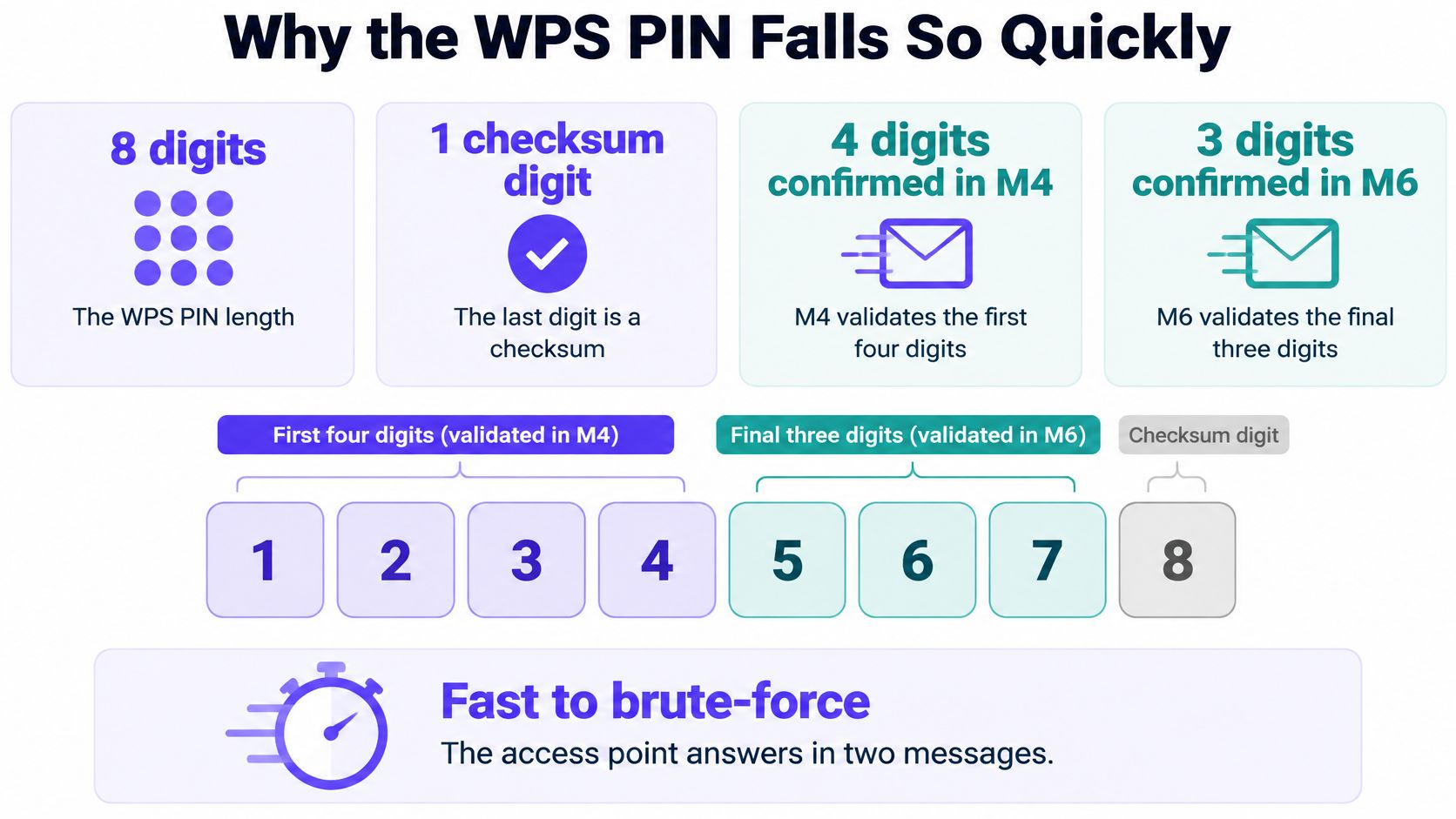
A combination count isn't a stopwatch. Radio conditions, response delays, lockouts, retransmissions and the implementation all affect whether an online attempt succeeds and how long it takes.
For a client report, distinguish these findings:
Don't write “crackable in minutes” because a survey tool displayed a WPS flag. Equally, don't call a network safe because a status column says locked. Record what you tested and what remains unverified.
Tools such as Wash can help identify WPS-capable radios. Reaver and pixiewps belong in an explicitly authorised assessment, with written scope and an agreed maintenance window where appropriate. They aren't necessary to justify removing an unused provisioning feature.
Successful unauthorised enrolment matters because the resulting credential can outlive the pairing event. Switching off the feature afterwards doesn't recall a passphrase already obtained.
If exposure is plausible, assess whether you also need to rotate the affected shared key, review connected devices and check access to internal services. Treat that as a separate containment decision, not an automatic consequence of every WPS advertisement.
The workplace guidance also distinguishes shared-code access from enterprise authentication using individual client certificates. For an MSP, that's the larger design decision: whether access belongs to everyone who knows a reusable secret, or to a managed device with an accountable identity.
A long shared password isn't a compensating control for an enrolment mechanism that can hand it to someone else.
An unsecured office can matter as much as a weak protocol. GOV.UK guidance for adult social-care providers explicitly advises keeping routers secure so users can't press the WPS button to bypass password security.
Apply that reasoning to the actual rooms in a managed estate. “Equipment is on the premises” isn't physical security if residents, cleaners, delivery drivers or temporary contractors can reach it.
These are deployment scenarios to check, not claims that every venue has the same layout or configuration.
| Environment | Where WPS sits | What an attacker gains | Worst case | Primary control |
|---|---|---|---|---|
| Hotel guest floors | Legacy equipment in risers or housekeeping cupboards | Access using the affected network's shared credential | A flat network exposes departmental services | Disable WPS, separate staff, guest and property-management traffic, assess key rotation |
| Student halls and MDU | Per-unit routers or communal access points | Credentials without a reliable tenancy lifecycle | A former resident retains access | Per-unit isolation and identity-based revocation |
| Care homes and clinics | Consumer routers in unlocked offices or staff rooms | An opportunity to trigger pairing | Guest access reaches resident or clinical systems | Secure hardware and segment sensitive traffic |
| Serviced offices | Landlord-managed equipment serving tenants | Entry to a shared tenant network | Cross-tenant access to exposed services | Per-tenant separation or individual enterprise credentials |
| Retail and leisure venues | Back-office routers near tills or stockrooms | Access to a payment-adjacent network | Untrusted devices reach payment infrastructure | Guest isolation and a payment-network scoping review |
| Event and temporary sites | Portable access points installed under time pressure | Access to a hastily configured SSID | Contractor devices reach business services | Tested deployment templates with WPS disabled |
Consider a hotel where reception, housekeeping and guest devices use the same shared key. Recovering that key doesn't automatically decrypt every session or bypass every application login. It does remove the intended network admission barrier, leaving the remaining controls to contain the intruder.
In student accommodation, the more persistent problem may be the departure process. A former resident who retains working credentials doesn't need to attack anything again. Per-unit isolation and credential expiry address a different failure from physically locking away the router, so the design needs both.
For a care home, start at the open office rather than the firewall diagram. Establish who can enter, whether the router button works and what a newly enrolled device can reach. That produces a more useful finding than a photograph of a router labelled insecure.
A broader access point security review should connect cabinet access, administration, enrolment and traffic policy. Closing the cupboard is valuable, but it won't remove a remotely reachable PIN interface.
Don't tell clients that WPS automatically proves a UK GDPR or PCI DSS breach. Establish what personal data or payment infrastructure is reachable, assess the relevant requirements and document the control gap.
Likewise, answer insurance questionnaires against evidence, not an assumed default. If the client declares WPS disabled, the MSP should be able to identify the audited estate and any exclusions.
Tenant separation must survive successful enrolment. Someone legitimately joining a building's WiFi still shouldn't inherit access to another tenant's devices or the landlord's management interfaces.
A saved checkbox isn't an evidence pack. The change needs an inventory, a configuration record and an independent check of what the radios advertise.
Firmware maintenance belongs in the same job. Ofcom's WiFi guidance advises keeping routers, mesh equipment and connected devices updated so they can receive security fixes.
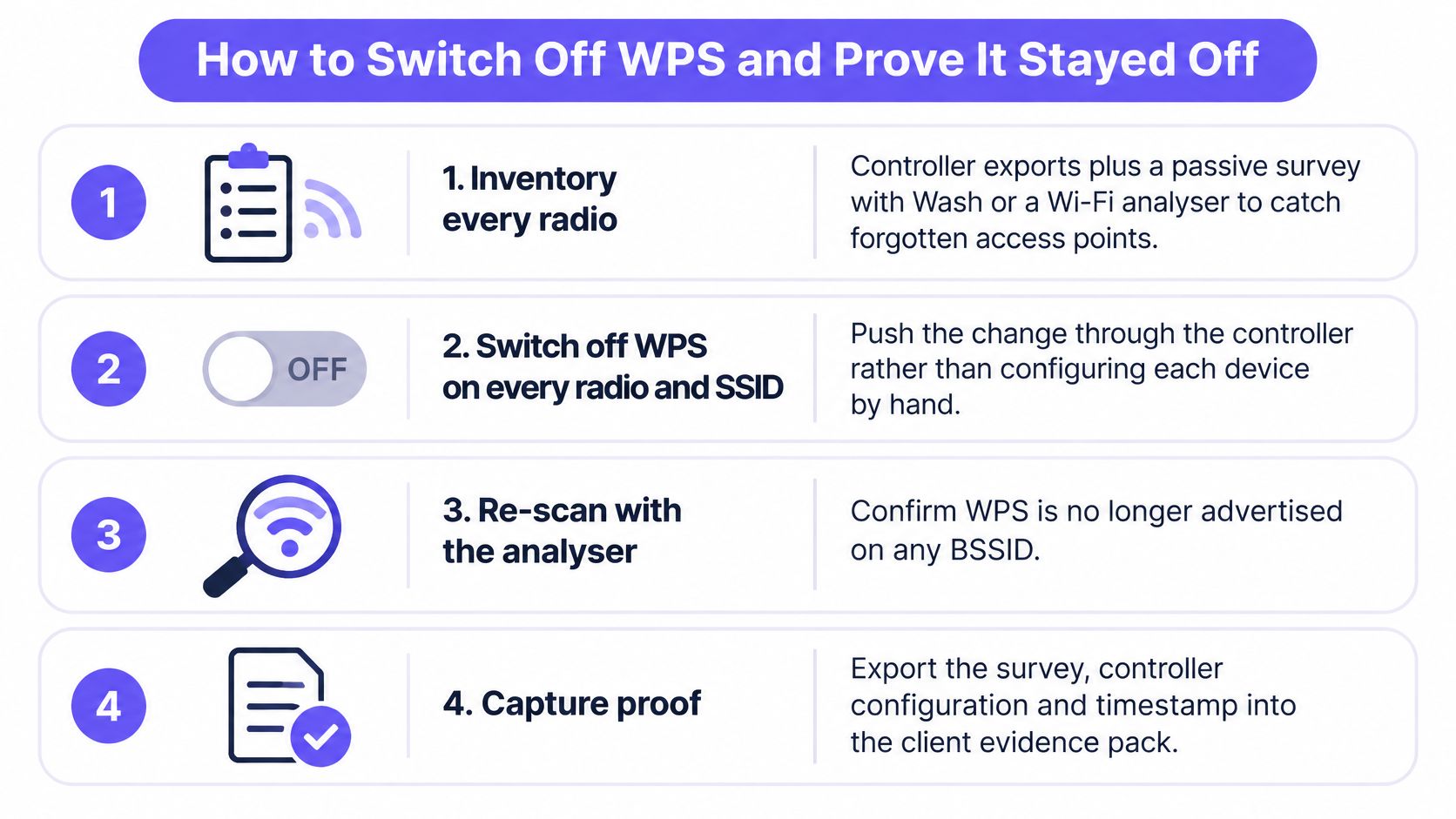
Inventory every managed radio. Export the controller inventory, then survey the premises using Wash or a suitable WiFi analyser. Reconcile discovered equipment with the asset register, including broadband routers and extenders outside the main wireless platform.
Capture the starting state. Record the site, access-point model, firmware, BSSID, SSID and advertised WPS capability. Keep the survey output and relevant configuration export so another engineer can reproduce the finding.
Find the actual setting. Search wireless, advanced wireless, security and device-level provisioning menus for WPS, PBC and PIN options. Controller layouts differ by platform, model and release; don't invent a menu path or assume every UniFi, Omada, Aruba or Cisco deployment exposes the same control.
Disable every supported WPS mode. Apply the change through the managed template where possible. If the platform doesn't implement WPS, record that fact rather than hunting indefinitely for a nonexistent toggle.
Harden administration and update firmware. Replace default administrator credentials, restrict management access and install supported security updates under change control. Keep management separate from ordinary guest and tenant access.
Verify after application and restart. Survey the relevant coverage areas again and compare the resulting advertisements with the baseline. Check the running configuration as well; missing advertisements alone aren't proof that every provisioning interface is unavailable.
Contain legacy exceptions. If a device needs supervised push-button setup, approve the pairing event, disable the feature afterwards and test normal reconnection. Never leave a static PIN enabled because an installer might return.
Close the ticket with artefacts. Attach before-and-after exports, survey results, timestamps, firmware details and the approving owner. Schedule verification after configuration restores, equipment replacement and routine security reviews.
Open the router's local administration page using the manufacturer's instructions or the address on its label. Look under WiFi, Wireless, Advanced or WPS, disable the available modes, save the change and restart if required.
Don't confuse the WiFi passphrase with the administrator password. Replace default administration credentials and use a unique wireless key with WPA2 or WPA3. If the interface only offers a pairing button, don't activate it unnecessarily; consult the model's documentation to establish whether PIN enrolment can also be disabled.
Evidence standard: A screenshot proves what an interface displayed. A configuration export and radio verification give you a stronger basis for saying what was deployed.
Hiding the SSID and applying MAC filtering aren't substitutes. Neither turns a reusable enrolment secret into managed identity.
Removing the shortcut is easy. Choosing the replacement requires a decision about what credential exists, who owns it and how access ends.
Don't compare onboarding products only by how few taps they need. A frictionless join that leaves the help desk unable to revoke a departed user's access is an incomplete design.
| Method | How a device joins | Secret in play | Revocation | Best fit |
|---|---|---|---|---|
| WPS push-button | Supervised pairing activation | The provisioned network pre-shared key | Rotate the shared key to invalidate copied credentials | Temporary legacy pairing only |
| WPS PIN | PIN-authorised provisioning | Setup PIN and provisioned shared credential | Disable enrolment and assess shared-key rotation | Exclude from managed designs |
| WPA2-Personal | Enter or provision a passphrase | Shared passphrase | Rotate the shared credential | Small, trusted deployments and constrained devices |
| WPA3-SAE | Authenticate using a passphrase | Shared password with stronger authentication properties | Rotate the password | Compatible sites without enterprise identity |
| WPA3-Enterprise with 802.1X and EAP-TLS | Authenticate through RADIUS using a client certificate | Device private key and individual certificate | Revoke or deny credentials and enforce session termination | Managed staff and contractor devices |
| WiFi Easy Connect (DPP) | Bootstrap using a supported QR or proximity workflow | Bootstrap keys and the credentials provisioned by the deployment | Determined by the provisioned access policy | Compatible IoT, printers and displays |
| Identity-app onboarding | Sign in and provision a device credential | User identity plus the resulting device credential | Disable identity or device access and enforce the policy | Staff, residents and students |
| Passpoint | Install a supported subscription or profile and authenticate automatically | Credentials associated with that profile | Disable the credential and enforce session policy | Returning guests and managed roaming schemes |
For managed staff devices, EAP-TLS provides a useful boundary: possession of an authorised device credential, rather than knowledge of a site-wide password. Use MDM to provision the profile, protect the private key and remove configuration when the device leaves management.
A practical certificate-based WiFi deployment through MDM also needs certificate renewal, authentication policy and recovery procedures. Revoking a certificate isn't necessarily the same as immediately terminating an existing session. Test directory disablement, authentication-server policy, certificate-status handling and session disconnection together.
Passpoint can remove repeated splash-page logins for compatible returning guests, but profile delivery and device support still need planning. An identity app can perform the provisioning journey where users accept that workflow.
DPP is useful for compatible browserless equipment, but scanning a QR code doesn't guarantee individual revocation. That property comes from the credentials and access architecture you provision afterwards. Test the printer or display against the actual controller rather than buying on the acronym alone.
Keep a captive portal where it serves a defined guest journey, such as terms acceptance or registration. Don't mistake the portal page for wireless encryption or tenant isolation.
The NCSC's KRACK guidance explains that the vulnerability affected both WPA2-Personal and WPA2-Enterprise without revealing the WPA2 password or directly letting an attacker join the network. Its recommendations reinforce the need for vendor updates and encryption of sensitive application traffic.
Maintain client and infrastructure patches, segment guest and tenant traffic, and protect sensitive services with TLS or an appropriate VPN. Where older equipment can't use WPA3-only operation, a carefully scoped transitional network with WPS disabled can be a practical migration step. Keep incompatible devices away from sensitive services rather than weakening the whole estate for them.
Sell this as a wireless access hardening programme, not a free toggle change. Discovery, compatibility testing, credential replacement and evidence production take engineering effort, even when disabling WPS itself is straightforward.
Scope the work around sites, supported device types, survey coverage and the replacement access method. Separate implementation charges from ongoing verification so the client knows what happens after handover.
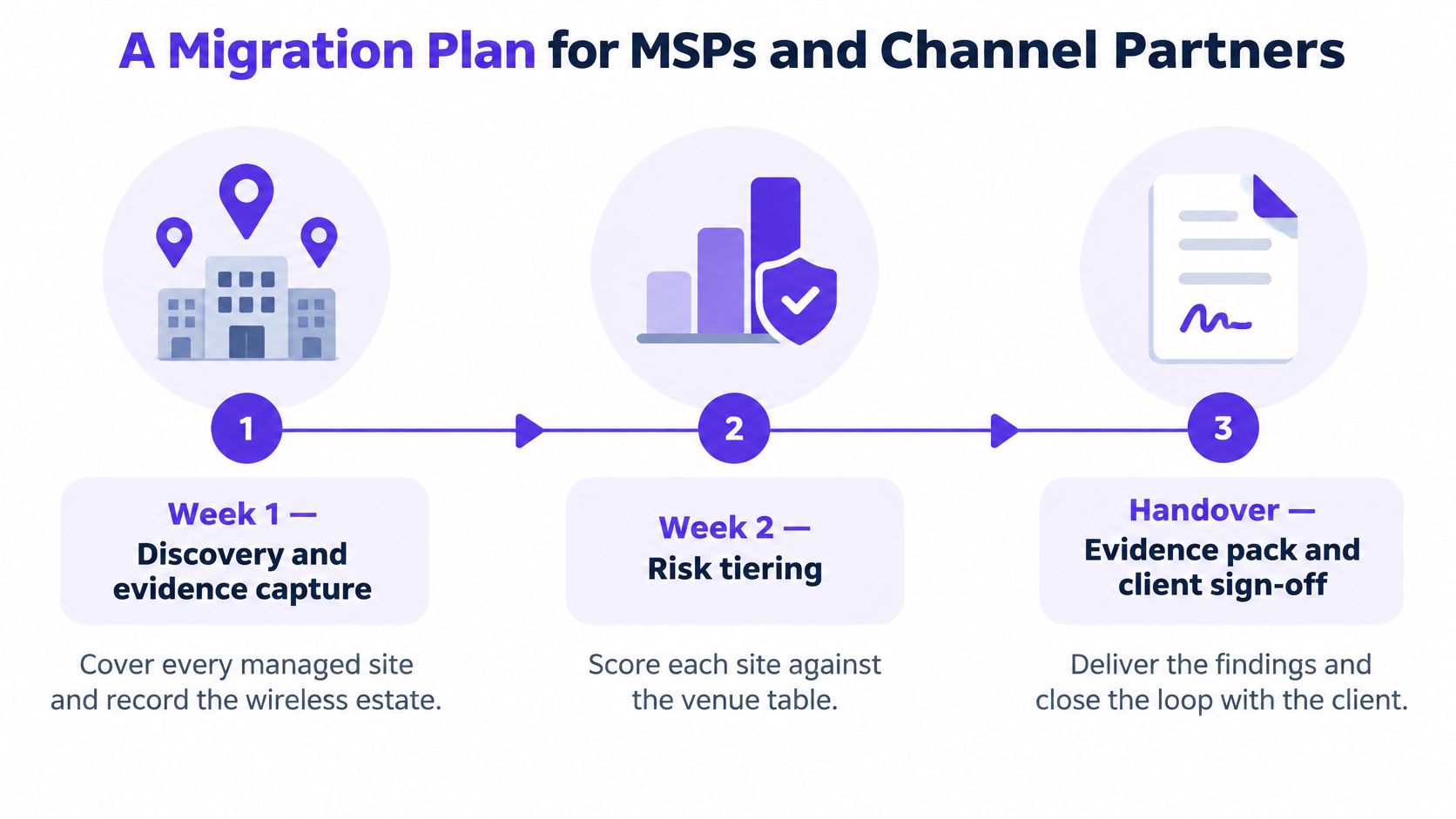
Begin with controller exports, site surveys and an ownership check. The deliverable is a wireless exposure register that identifies which equipment you manage, which equipment belongs to the landlord or ISP and which devices nobody has claimed.
Rank findings by reachable services, physical accessibility and business impact. An exposed enrolment path onto a clinical or payment-adjacent segment deserves earlier attention than an isolated, supervised lab network.
Use a short decision record:
Client sign-off should approve the treatment, not merely acknowledge receipt of a report.
Produce an SSID and access-policy matrix covering staff, guests, tenants, contractors and browserless equipment. For each category, specify authentication, network placement, permitted destinations and the departure process.
Pilot on a contained floor or property before changing the whole estate. Include awkward equipment deliberately: label printers, meeting-room displays, building controls and personally owned devices where the service permits them.
Measure failed joins, support requests and application reachability against the agreed acceptance criteria. Don't promise fewer tickets without establishing a baseline.
Disabling unused WPS shouldn't require existing clients to re-enter their password. Replacing the authentication method is a separate change and needs its own user communication.
Deploy in waves with an explicit rollback plan. Tell the help desk which symptoms to expect, how to distinguish authentication failure from segmentation policy and who can approve an exception.
The handover pack should contain the verified configuration, survey evidence, access matrix, credential lifecycle procedure and signed exception register. Add firmware responsibility and review frequency to the service agreement so maintenance doesn't disappear between contracts.
Position the project within the client's wider business WiFi requirements, rather than treating security and the user experience as separate purchases. Explain which operational problem each design choice solves: departing staff, resident turnover, contractor access or keyboardless onboarding.
Budget for communication and support during the pilot and rollout. A smooth migration comes from testing real devices and assigning owners, not from assuming that an identity platform removes every compatibility problem.
Any managed access point serving staff, guest or tenant traffic should have WPS disabled unless a named owner has approved a time-limited exception. Equipment you can't administer should become a written finding with an assigned escalation route, not an invisible exclusion.
Use the next review cycle to make the decision operational. Start by establishing the audited estate, prioritise exposed networks with access to sensitive services, then approve a replacement onboarding method for each device category.
The outcome isn't just a different login screen. Require evidence that an authorised device joins successfully, an unauthorised device is refused, a departed user loses access and tenant boundaries remain intact.
For clients choosing passwordless staff access, our Staff WiFi uses WPA3-Enterprise with automatic device provisioning and revocation tied to the customer's identity provider through the Purple app, without shared passwords. Purple deploys as a hardware-agnostic cloud overlay on existing WiFi infrastructure, and in most cases no additional hardware is required. That makes it an option to evaluate when the access layer is serviceable but shared-password onboarding isn't.
Purple Partners is the channel programme for resellers, MSPs and systems integrators delivering identity-based WiFi. Partners receive training, enablement resources and access to a dedicated support team.
Take the configuration capture and passive survey findings into the next client meeting. Ask for approval of the remediation scope, exception owners and the onboarding replacement, rather than presenting another general security warning.
Define success as no WPS-enabled radios within the audited, remediated scope, supported by repeatable verification. Any remaining exception should have an expiry, a business justification and a person responsible for closing it.
The most useful deliverable is a network where the MSP can explain who joins, what they can reach and how their access ends.
Purple offers identity-based WiFi that gives MSPs a replacement for shared-password onboarding rather than another pairing shortcut. Visit Purple to discuss your staff, guest or multi-tenant access requirements, and bring your wireless inventory and exception register so the conversation starts with the estate you need to secure.
Join 80,000+ venues already running on Purple. No targets, no minimums, just bigger deals.